Do you ever look at your phone and think, “This could handle my workday if I set it up right”? You’re not wrong. Modern phones can run calls, meetings, notes, emails, and even a second screen—if you prepare a few pieces and a simple workflow.
With the right audio gear, a compact desk setup, and a short list of reliable apps, your phone can carry a workday without feeling cramped or chaotic. The goal here is comfort, clarity, and control: keep your voice clear, your notes searchable, and your tools within a thumb’s reach.
Start With Meetings and Calls
Meetings are usually the first test of a phone-first setup. If you can join, speak, hear clearly, and jot quick notes without juggling apps, you’re on track.
Reliable Audio That Just Works
Phone mics are fine in a pinch, but they pick up room noise and can sound thin. A wired option reduces variables. For back‑to‑back meetings, a USB head set keeps audio stable without draining your phone over Bluetooth. That one change often fixes echoes, reduces dropouts, and keeps your battery steady.
If you prefer wireless, keep a small charging case nearby and switch ears between meetings to reduce fatigue. Either way, test your mute toggle and input source in your main meeting app so you don’t lose time at the start of each call.
Video Calls Without Friction
Front cameras are good enough for most meetings. A stable stand at eye level matters more than specs. Set your phone slightly above your eyeline and angle it down for a natural view. Good light facing you (a window or a soft desk lamp) does more for video quality than a new phone does.
If your phone supports desktop modes (like Samsung DeX) or wired screen output, consider driving calls on the phone while viewing shared slides on a larger display. That keeps the call smooth but gives your eyes more space.
Faster Join and Smoother Handoffs
Save meeting links in your calendar, pin your main conferencing app to the home screen, and whitelist it for background activity so it doesn’t get suspended mid-call. If you need to switch devices, keep your meeting link handy in a pinned note so you can rejoin on a laptop in seconds.
Transcription and Notes You’ll Actually Revisit
Taking notes on a phone can be quick and clean if you set a pattern and stick with it.
Live Transcription for Clarity
Use a transcription app that can record in the background and tag speakers. It doesn’t need to be perfect; it needs to be searchable. Many tools can auto-summarize, but the key is that you can jump to timestamps—fast scrubbing beats reading a full transcript when you’re pressed for time.
If privacy is a concern, choose on-device transcription when possible and keep sensitive projects in a separate workspace or folder. Always inform participants if you’re recording.
Actionable, Not Just Archival
Create a simple structure: headline, date, meeting link, three bullets for decisions, three for actions, and one short summary. At the end of the day, move actions into your task app and link back to the note. The habit is what makes notes useful, not the tool.
Make Typing and Pointing Comfortable
If you plan to write more than a paragraph or navigate complex sheets, a compact keyboard and mouse save your hands and your patience.
Pair a Keyboard and Mouse
Bluetooth works well for most setups. For the most stable pairing, keep them connected to a small USB-C hub. Many phones support a standard mouse cursor; trackpads work too. A familiar keyboard layout with media keys for quick mute and volume saves time in meetings.
Use a Hub to Go Wired
A slim USB-C hub can give you power delivery, HDMI for a monitor, USB-A for peripherals, and Ethernet for rock-solid calls. Plug in your keyboard, mouse, and audio once, then connect your phone with a single cable. If your device supports a desktop mode, you’ll feel the difference right away.
Build a Desk-Ready Phone Rig
Stands and Power
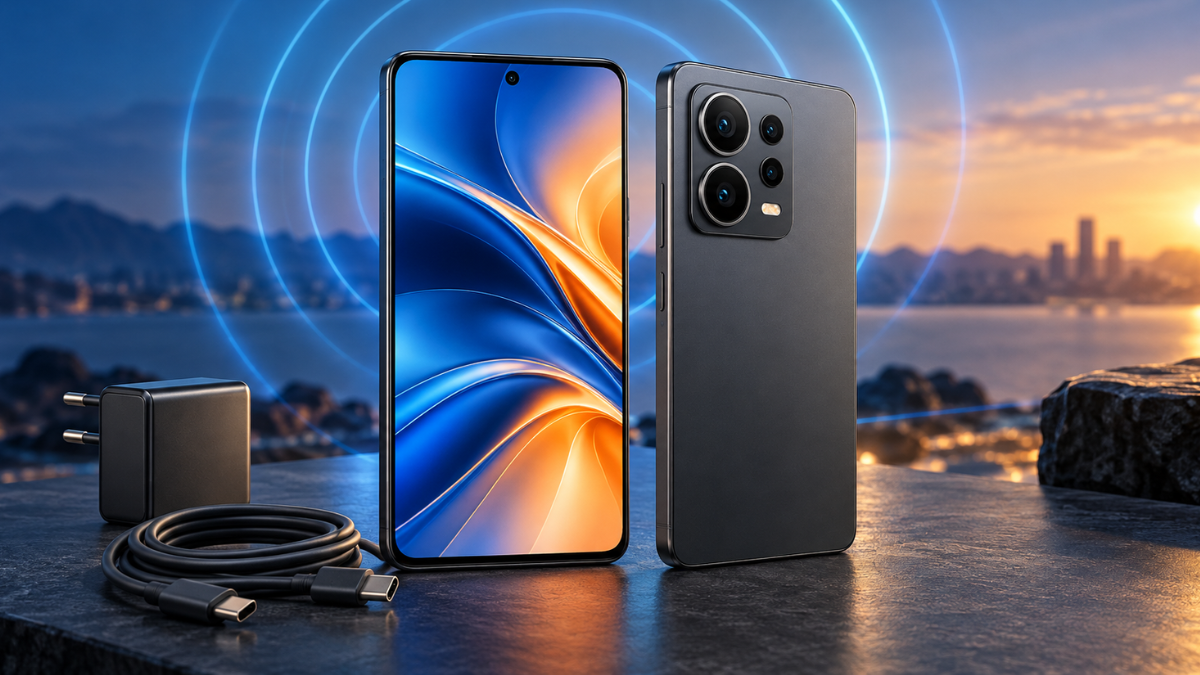
Use a stable, weighted stand at eye level. Keep a braided USB-C cable connected to a 45W+ charger so your phone stays topped up during calls. If you prefer wireless charging, use a stand, not a flat pad, so your camera framing stays consistent.
Displays and Network
A wired connection to an external display (via HDMI) gives you a crisp image and less lag. Ethernet through your hub provides steady bandwidth. If you’re on Wi‑Fi, park your desk near your router and avoid crowded 2.4 GHz networks when possible.
A Simple Desk Kit
- Weighted phone stand, 45W USB‑C charger, braided USB‑C cable
- USB‑C hub with power delivery, HDMI, two USB‑A ports, Ethernet
- Compact Bluetooth or wired keyboard, low‑profile mouse
- Wired in‑ear headset or on‑ear option for longer calls
App Picks That Make a Phone Feel Like a Computer
You don’t need a dozen apps. You need a few that are stable, sync well, and reduce context switching.
App Picks by Job
- Meetings: Your main conferencing app plus a backup (two sign-ins ready)
- Transcription: A recorder with timestamps and shareable summaries
- Notes: A fast, low-friction notes app with offline mode and tags
- Tasks: A simple list with quick capture from notifications or a widget
- Files: A cloud drive with reliable offline folders and desktop sync
- Remote access: A remote desktop app for the rare “I need that file now”
- Security: A password manager, authenticator, and a trusted VPN
Keep these on your first home screen. Make a second screen for “nice to have” tools. The fewer taps to start work, the better the day goes.
Keep Battery, Data, and Security in Check
Running your workday from a phone is smooth when power, bandwidth, and privacy are handled upfront.
Battery and Heat
Use power delivery through your hub during long calls. Dim the screen when you’re on an external display; the panel is a big power draw. If your phone gets warm, give it airflow and avoid bulky cases while docked.
Data and Bandwidth
Video eats data. When on mobile, switch to audio-first if your plan is tight. On Wi‑Fi, prefer 5 GHz or wired Ethernet. Kill background sync for non‑work apps during meetings to avoid random slowdowns.
Security Basics
Lock your screen with a strong code, not just biometrics. Turn on auto-lock after short idle time. Review app permissions, especially mic, camera, and location. If your company offers MDM, enroll your device so compliance checks don’t block access at the worst moment.
Workflows That Reduce Friction
A few small habits make the phone-first day feel natural.
Prep Before the Day Starts
Open your first meeting link from your calendar and pin it. Preload your transcription app. Put your notes doc in split-screen if your phone supports it. Place your phone on the stand, check framing, and test audio for ten seconds. That tiny ritual avoids most surprises.
During the Call
Mute by default. Write decisions as they happen, not later. Star tasks you commit to so they pop into your task app at the end. If you switch rooms, unplug the single cable and walk—the hub will be right where you left it.
After the Meeting
Share a short summary with actions. File the note with a consistent name pattern so you can search by client, date, or topic. If a transcript exists, clip the two or three moments you’ll actually need to revisit.
A Sample Day on a Phone-First Setup
You dock your phone at 8:50 a.m., the hub powers it, and your display wakes up. At 9:00, you join your call in one tap. Your transcription app runs in the background; your notes are open next to the meeting. A teammate shares a doc—your cloud drive opens it, and your keyboard makes edits feel normal.
At noon, you undock for a walk-and-talk one-on-one, pop in your wired earbuds, and carry on without worrying about battery. Back at the desk, you plug in one cable. Your 2:00 p.m. is a client demo on the big display. You capture three decisions, send a two-line recap, and the actions land in your task list. By 5:00, nothing feels like a workaround. It feels like your desk—only smaller.
Troubleshooting the Common Snags
If audio cuts in and out, try wired first, then Ethernet. If your camera looks dim, face a window or add a soft lamp. If typing lags over Bluetooth, move the hub cable away from the keyboard receiver or go wired. If apps reload when you switch, lock them in split-screen or keep them in the “Recents” dock so the system is less likely to close them.
Final Thoughts
Your phone can absolutely run your workday. The trick is a stable desk setup, simple apps that you trust, and a steady pattern for calls, notes, and follow‑ups. Keep audio solid, make transcription searchable, and give your hands a comfortable way to type and point. Once those pieces are in place, the rest of the day tends to fall in line.