Factory Reset Protection is an important security feature built into Samsung devices running Android. While it helps protect phones from unauthorized access, it can also cause problems for legitimate users. Many Samsung users get locked out of their phones after performing a factory reset, especially if they forget the previously synced Google account.
With the release of Android 16, Samsung has strengthened its FRP security system. As a result, many traditional bypass methods no longer work, leaving users searching for effective solutions.
If your Samsung phone is stuck on the “Verify your account” screen after a reset, don’t worry. In this guide, you’ll learn: What Samsung Android 16 FRP is and what changes Android 16 brings to FRP security, free ways and advanced tools to bypass Android 16 FRP safely.
What Is Samsung Android 16 FRP?
Samsung Android 16 FRP refers to Factory Reset Protection on Samsung devices running Android 16.
FRP is a security feature introduced by Google in Android 5.1 to protect smartphones from unauthorized use after a factory reset. Once FRP is activated, the device requires the previously synced Google account credentials before allowing access.
FRP automatically activates when:
- A Google account is added to the device
- Screen lock security is enabled
- The phone is factory reset without removing the Google account
After the reset, the setup wizard will ask for the original Google account. If you cannot provide the correct credentials, the device will remain locked.
This security measure is very helpful in preventing stolen phones from being reused, but it can also cause issues in situations like:
- Forgetting the Google account password
- Buying a second-hand Samsung phone
- Performing a reset without removing the account first
What Changed in Samsung Android 16 FRP?
Android 16 introduces stronger security mechanisms that make FRP bypass much more difficult than before. In earlier Android versions, users could bypass FRP by installing APKs, exploiting accessibility features, or accessing the browser through the setup screen. However, many of these loopholes have now been closed.
Major security changes in Android 16 FRP
1. Restricted APK installation
Previously, users could install bypass APK files during the setup process. Android 16 blocks most unauthorized APK installations during the setup stage.
2. Limited access to system apps
Many traditional tricks relied on opening system apps like:
- Settings
- File Manager
- YouTube
- Chrome browser
Android 16 restricts these access points during setup.
3. Stronger verification system
Google account verification now uses enhanced authentication checks, making bypass attempts more difficult.
Because of these improvements, many older FRP bypass guides no longer work on newer Samsung devices running Android 16.
How to Remove Samsung Android 16 FRP- FREE
In this part, you will know three of the easiest and official ways to remove Samsung FRP on Android 16.
Method 1. Sign in with Original Google Account
The easiest and safest way to remove Samsung Android 16 FRP is simply signing in with the Google account previously used on the device. Now let’s see how it works:
Step 1. Turn on the Samsung phone, then connect the device to a Wi-Fi network.
Step 2. Continue through the setup wizard. When the Verify your account screen appears, enter the original Google account email.
Step 3. Enter the correct password to complete the setup process.
Once the account is verified, FRP will be automatically removed. However, this method only works if you still remember the login credentials. If you forget your account password, try the next method.
Method 2. Recover Google Account
If you forgot your Google password, you can recover your account through Google’s recovery service.
Here are the steps:
Step 1. Open the Google Account Recovery page on another device, then enter the Google email address linked to the phone.
Step 2. Follow the instructions to verify your identity. Reset the password.
Step 3. Wait about 24 hours for security verification.
Step 4. Use the new password to unlock the Samsung device.
This method works well if you still have access to your recovery email or phone number.
Method 3. Use Samsung Find My Mobile
Samsung also provides an official remote unlocking tool called Find My Mobile. However, this method only works if:
- The Samsung account was previously logged in on the device
- Remote unlock was enabled
Here is how you can do it:
Step 1. Visit Samsung Find My Mobile on a computer. Sign in with your Samsung account.
Step 2. Select your locked Samsung device, click Unlock. Confirm your Samsung account password.
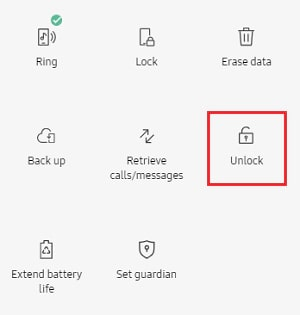
After unlocking, the FRP lock will be removed, and you can access the phone.
How to Bypass Samsung Android 16 FRP (Advanced Methods)
If the official methods don’t work, you may need to use advanced FRP removal tools. These tools are designed to bypass the Google account verification screen and restore access to the device.
Method 1. Use Proffesional FRP Unlock Software-DroidKit
The FRP Bypass feature in iMobie DroidKit is designed to help Android users quickly and safely bypass Google Factory Reset Protection (FRP).
With DroidKit, you can bypass the FRP lock without needing the original Google account or password. The tool provides a simple, guided process that allows users to regain full access to their devices in just a few steps.
Key feature:
- Wide device compatibility: The software supports 20,000+ Android phone and tablet models, including major brands such as Samsung, Xiaomi, Redmi, OPPO, and Motorola.
- Customized unlock solutions: iMobie DroidKit automatically identifies the device model and Android version, then applies a tailored FRP removal solution to maximize the success rate.
- Beginner-Friendly Operation: The interface is designed to be simple and intuitive.
- Full functions: It offers various functions: screen unlock your Android phones, recover data from your broken phones, fix system errors like boot issues, and so on.
How to Use iMobie DroidKit to Bypass FRP on Android 16
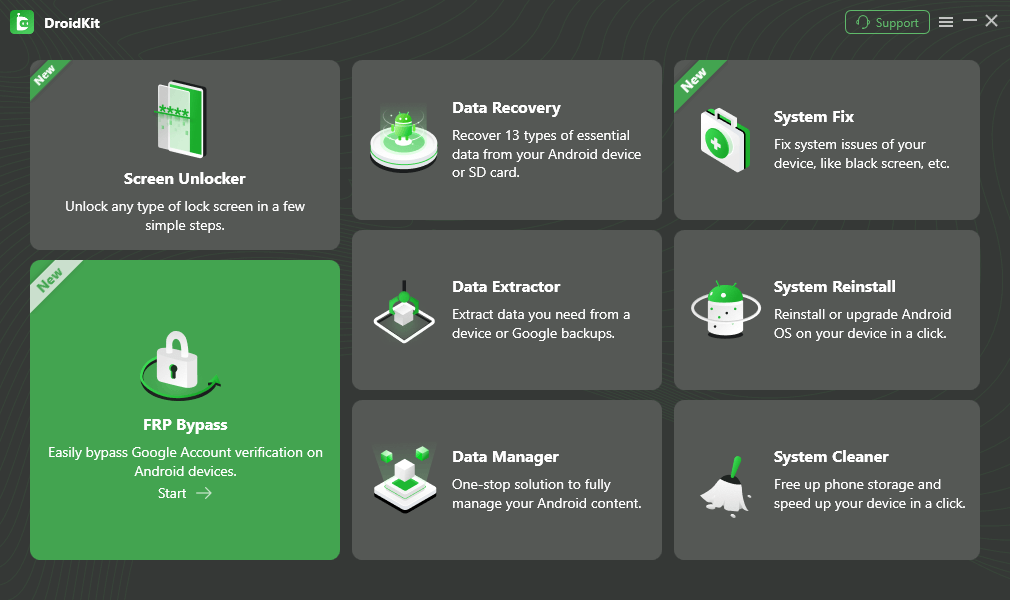
Step 1. Free download and install DroidKit on your Windows PC or Mac > Preview DroidKit and select FRP Bypass.
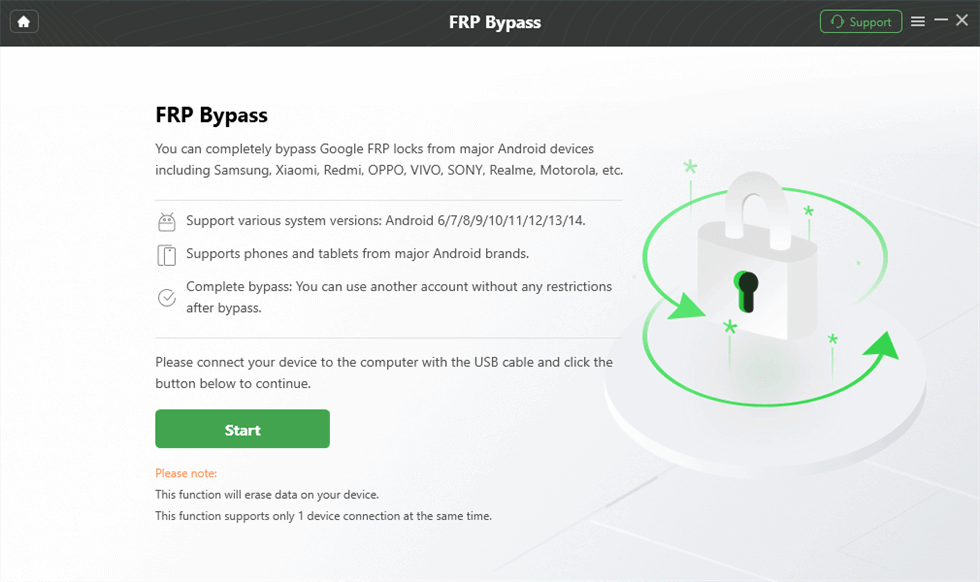
Step 2. Once you are on the FRP Bypass screen, connect your phone and hit the Start button.
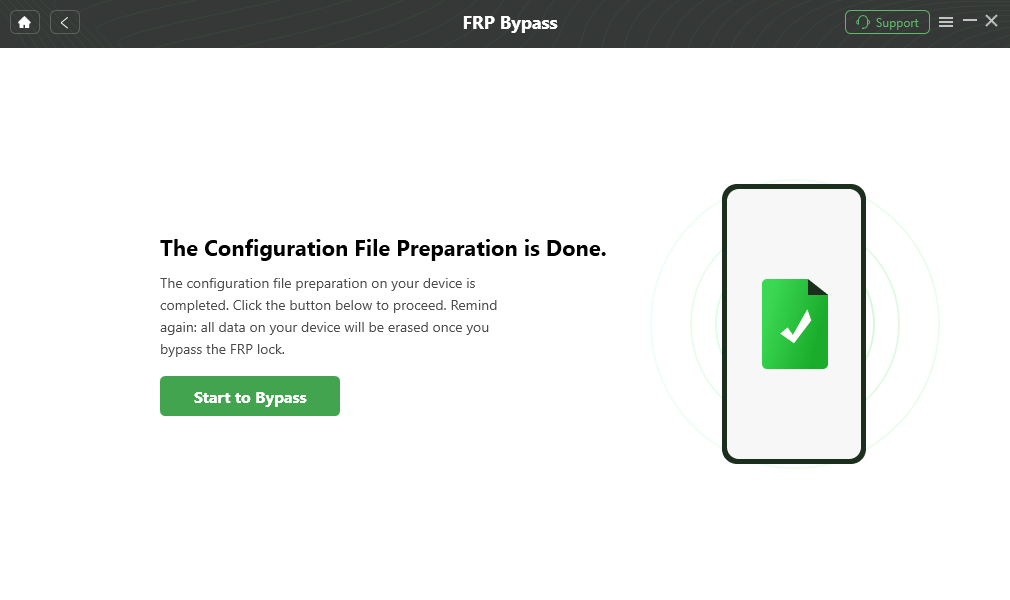
Step 3. After that, it will begin preparing the configuration file for your device. Once the preparation process ends, press the Start to Bypass button.
Step 4. Then you need to select the System Version and tap on the Next button. Then, follow the full instructions in the DroidKit interface and click on the Reset button.
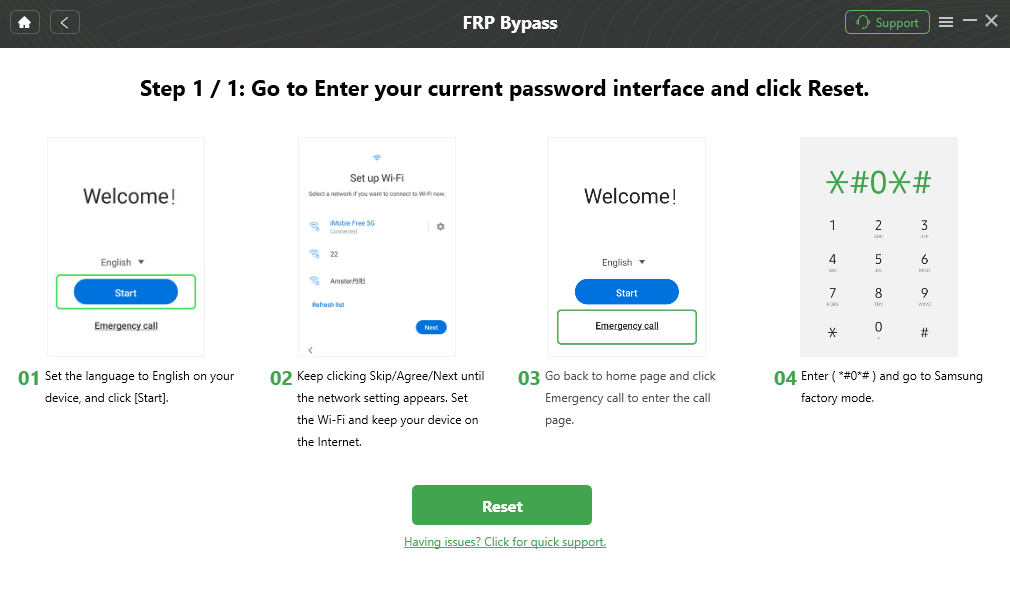
Step 5. After completing the steps above, the device will be restarted and the FRP Lock is also removed successfully.
Method 2. Use Professional Samsung Android 16 FRP Unlock Tool
If the official methods don’t work, you may need to use advanced FRP removal tools.
These tools are designed to bypass the Google account verification screen and restore access to the device.
#1. SamFW Tool
SamFW Tool is a free Windows utility designed mainly for Samsung devices. It is widely used to perform basic maintenance tasks such as FRP bypass, ADB commands, and device information reading. The tool provides a simple interface and one‑click features that make it convenient for users who need to remove Samsung FRP locks quickly.
Main features:
- Samsung FRP bypass
- ADB management tools
- Read Samsung device information
- Disable Knox and system utilities
#2. SamXTool
SamXTool is a professional Samsung servicing tool used for unlocking and repairing Samsung smartphones. It supports FRP removal, Samsung account removal, and device maintenance functions, making it popular among mobile repair technicians.
Main features:
- Samsung FRP unlock
- Remove Samsung account
- Device information and diagnostics
- Basic firmware and maintenance tools
However, compatibility may vary depending on firmware versions.
#3. Android Utility Pro
Android Utility Pro is an advanced Android repair tool that supports multiple smartphone brands. It offers features such as FRP bypass, ADB/Fastboot commands, and system repair tools, making it suitable for experienced users and repair professionals.
Main features:
- FRP removal for various Android devices
- ADB and Fastboot operations
- Device diagnostics
- System repair utilities
However, these tools usually require technical knowledge and may not work on all Android versions. For beginners, using a dedicated FRP removal tool like DroidKit can be a simpler solution.
Bonus Tip. How to remove Samsung FRP by IMEI-Remove It Completely
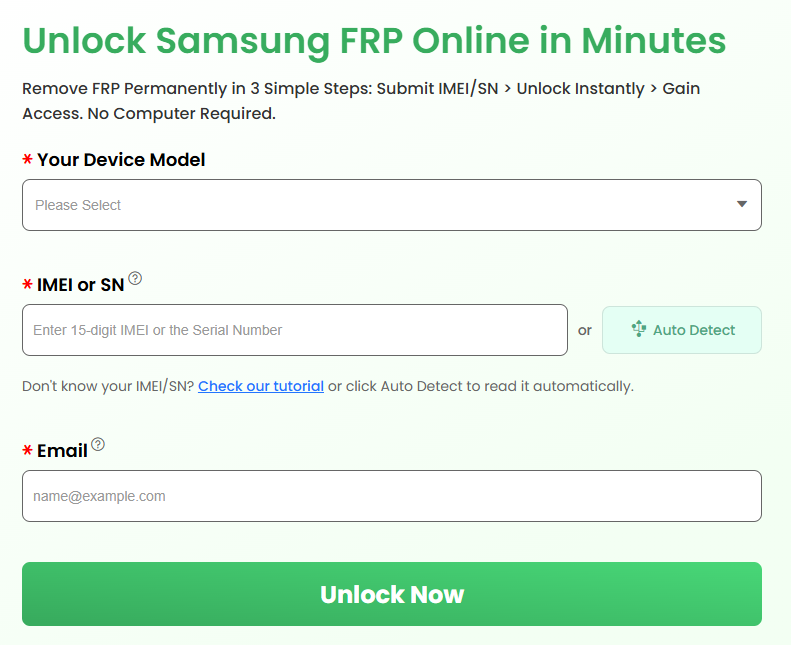
DroidKit FRP Bypass Online Tool is a web‑based unlocking service designed to help users remove Samsung Factory Reset Protection (FRP) quickly and easily. Unlike traditional FRP bypass tools that require installing software on a computer, this solution allows users to unlock their devices directly online using their IMEI or Serial Number.
Key features:
- The online FRP bypass service supports most Samsung smartphones and tablets, covering many popular Galaxy series models and multiple Android versions.
- The process is fully automated and beginner‑friendly.
- Once the FRP lock is removed, the device can be set up normally.
Just go to the DroidKit online FRP removal page. Choose your Samsung model and then enter your Samsung IMEI or SN directly. You can also use the automatic way to get the numbers.
FAQs
Q1. Is there a free Samsung Android 16 FRP tool?
Yes, some free tools like SamFW Tool can remove Samsung FRP. However, free tools may have limitations, compatibility issues, or require technical experience. Professional software often provides a more stable solution.
Q2. Does factory reset remove FRP?
No. Factory resetting the device does not remove FRP. In fact, performing a reset without removing the Google account will trigger the FRP lock. You must verify the previously synced Google account to access the device again.
Q3. Can Samsung service center remove FRP?
Yes, Samsung service centers can remove FRP if you provide valid proof of purchase and device ownership.
Without proper documentation, they usually cannot unlock the device.
Summary
Samsung Android 16 introduces stronger Factory Reset Protection (FRP), which improves device security but can also lock users out after a factory reset. If you encounter the Samsung Android 16 FRP lock, you can first try official methods such as signing in with the original Google account, recovering your Google credentials, or using Samsung Find My Mobile.
If these options are unavailable, advanced tools like DroidKit, SamFW Tool, SamXTool, or Android Utility Pro can help bypass the FRP lock. By choosing the method that best fits your situation, you can regain access to your Samsung device and complete the setup successfully.