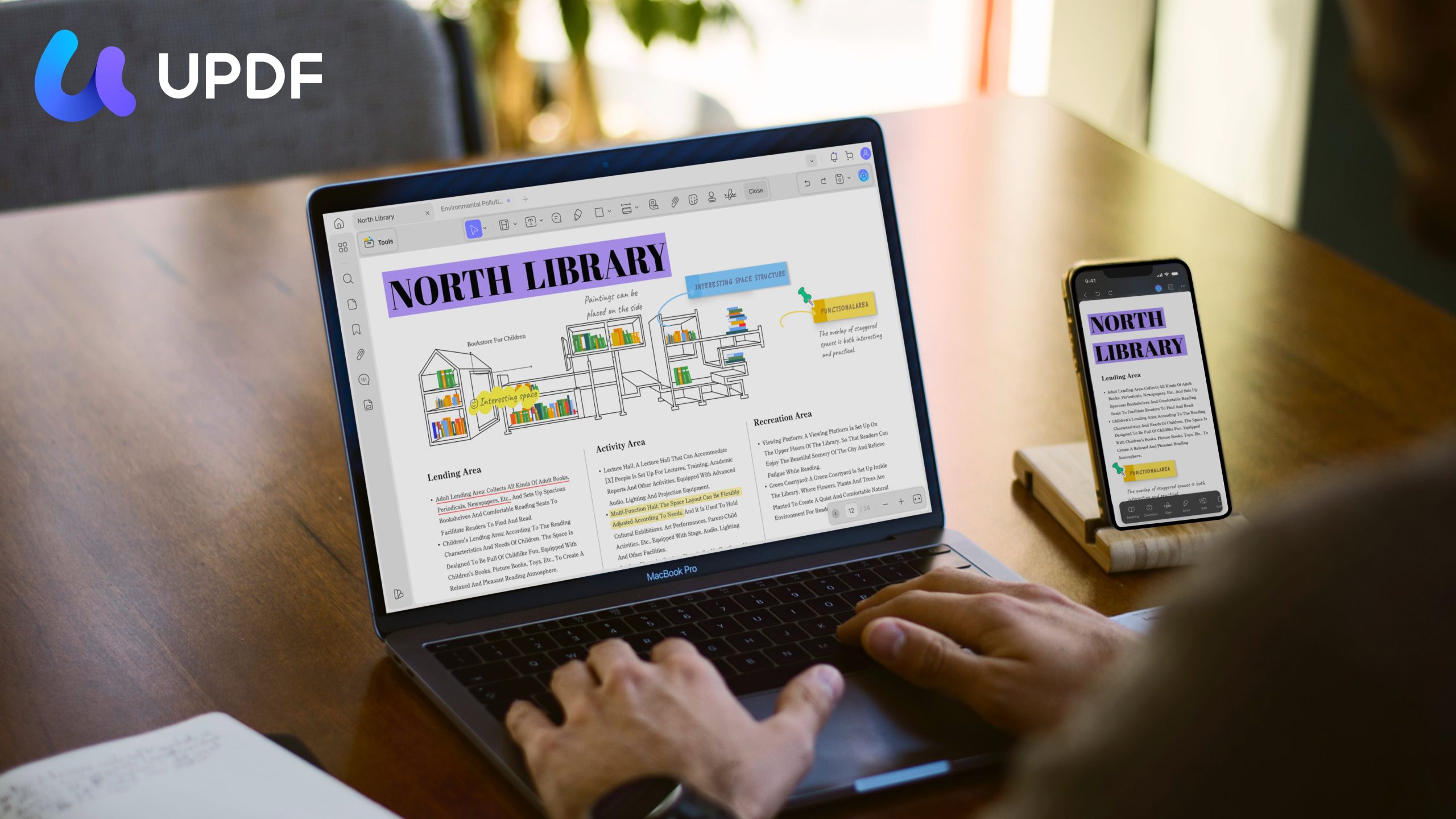
A 90-page supplier contract lands in your inbox as a scan. You paste sections into a chatbot, receive a summary, and then stall. The summary remains in one window, while the document needing attention stays in another. That separation is the problem. General AI can read your PDF, but it cannot correct the typo on page 12, move the pricing table into Excel, redact bank details, or return a signed copy.
UPDF closes that gap by combining document understanding and execution. Moreover, UPDF AI can read, summarize, and translate the PDF, while UPDF helps complete the work without exporting between tools. This article follows one report through the process: OCR makes it readable, UPDF AI explains the content, precise editing fixes details, while signing and compression prepare the file for delivery.
Key Features That Turn AI Answers Into Finished Work
The following key features show how UPDF AI turns document insights into finished work, with each capability continuing where the previous one ends.
UPDF AI (Powered by GPT-5.6)
UPDF AI works inside the document rather than beside it. UPDF upgraded the assistant to GPT-5.6 in July 2026, adding stronger multilingual understanding and more reliable document question answering. That shows up most on the files people put off reading.
- Ask questions directly inside a PDF and get answers grounded in its own pages.
- Summarize long reports and contracts, or translate selected sections without breaking the layout.
- Explain unfamiliar terms in place, then convert the file into a mind map for review.
- Chat with screenshots and images and run “Paper Search” or “Scholar Research” for literature work.
Precise PDF Editing
Once you know what needs fixing, you can make the change directly in UPDF. The editing tools work much like a word processor while keeping the original page structure intact.
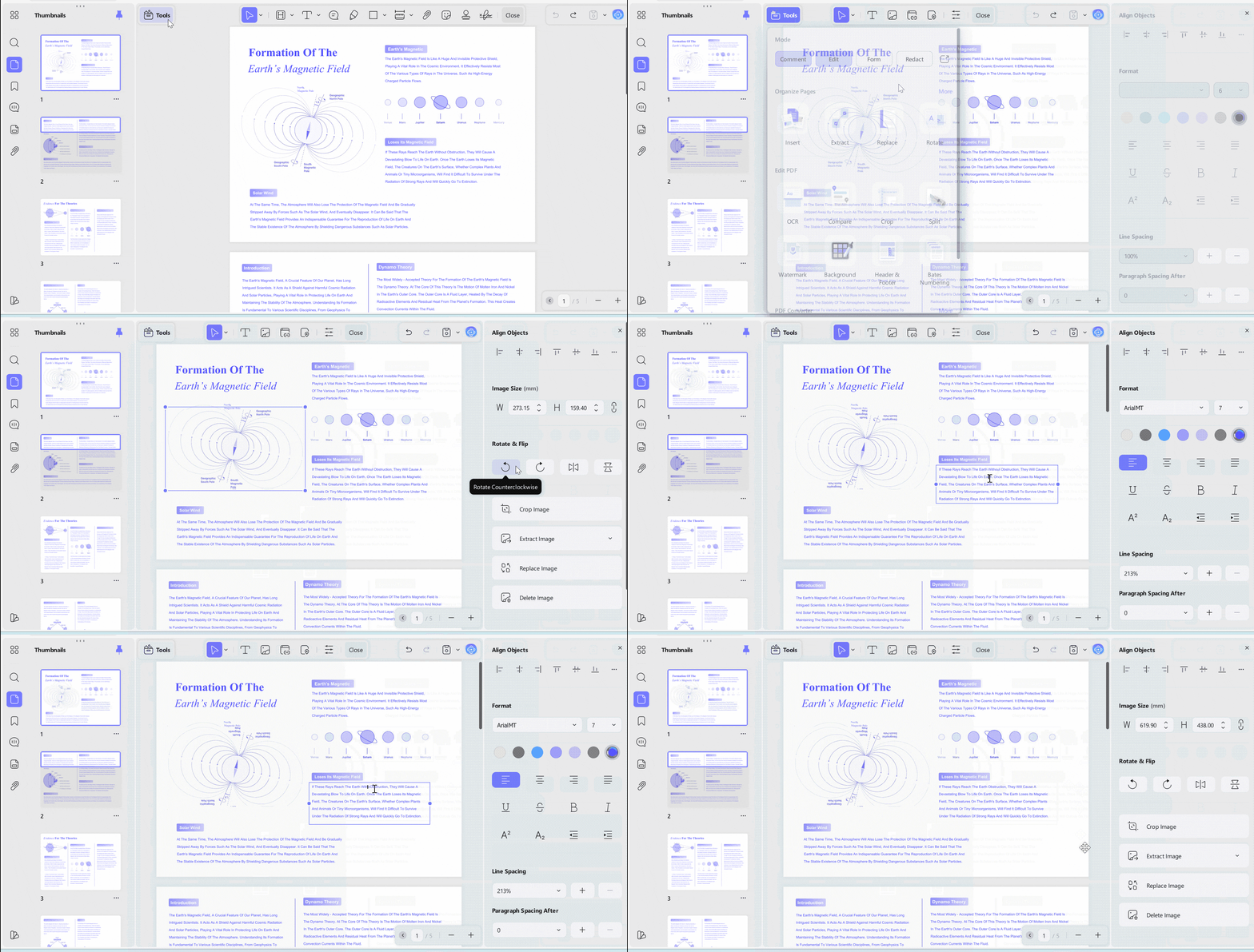
- Edit existing text or add new content without recreating the page.
- Replace, crop, rotate, resize, or reposition images inside the PDF.
- Add, update, or remove links that point to pages or websites.
- Change headers, footers, watermarks, and page backgrounds when required.
- Preserve the original fonts, spacing, and layout while making corrections.
Advanced OCR
Scanned pages are images, and an image cannot be summarized, searched, or edited. OCR is the step that changes that, and UPDF handles it across multiple languages. It is what makes the rest of this workflow possible on paperwork.
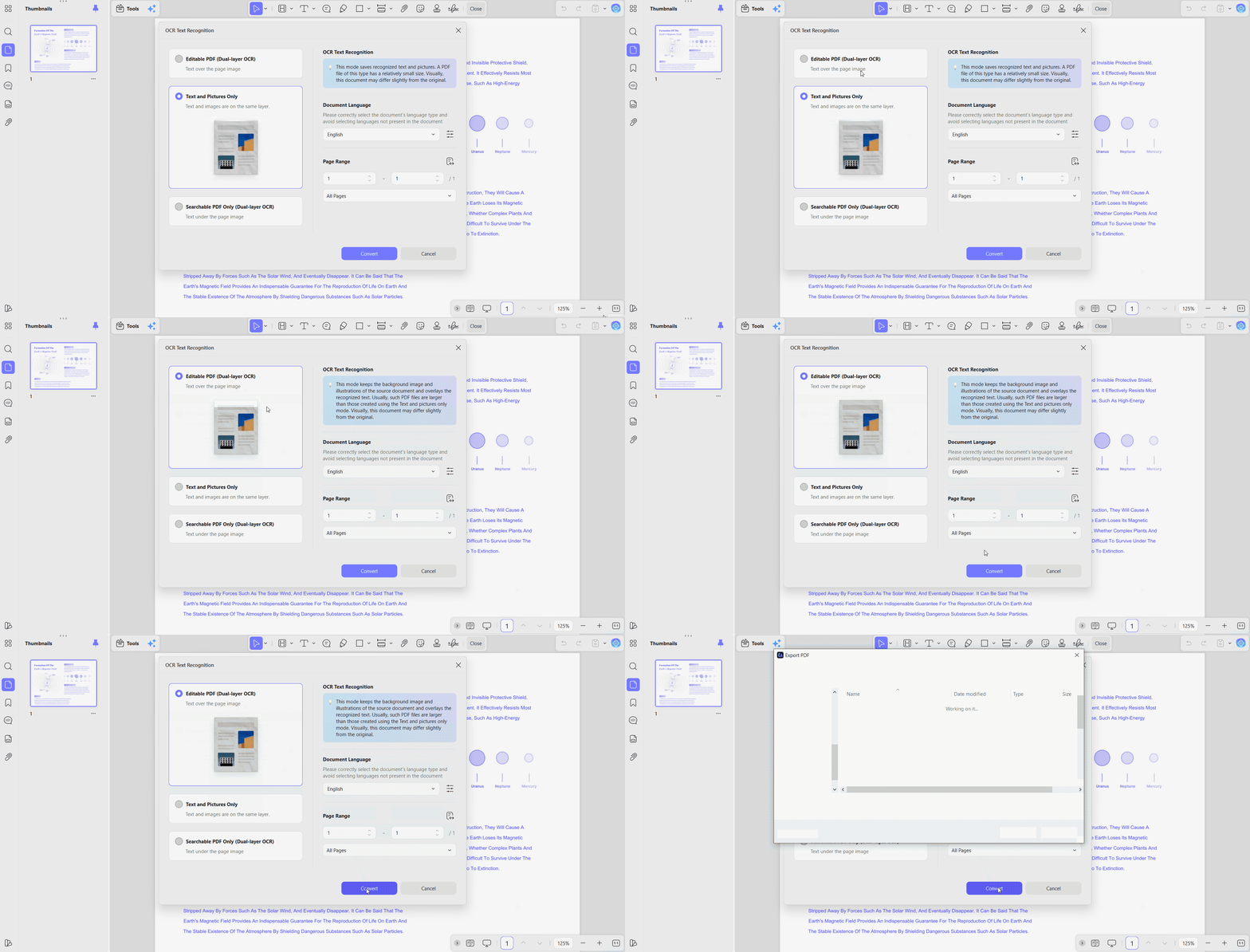
- Import the scan, or capture the pages straight from a phone camera.
- Run OCR to rebuild the page as a searchable, selectable text layer.
- Edit, translate, or summarize the result without retyping a word.
Note: UPDF supports OCR on Windows and Apple silicon Macs when installed through its official website.
High-Fidelity PDF Conversion
Insight often has to leave the PDF to be useful. Conversion keeps the structure intact on the way out, which is the difference between reusing a table and rebuilding it by hand.
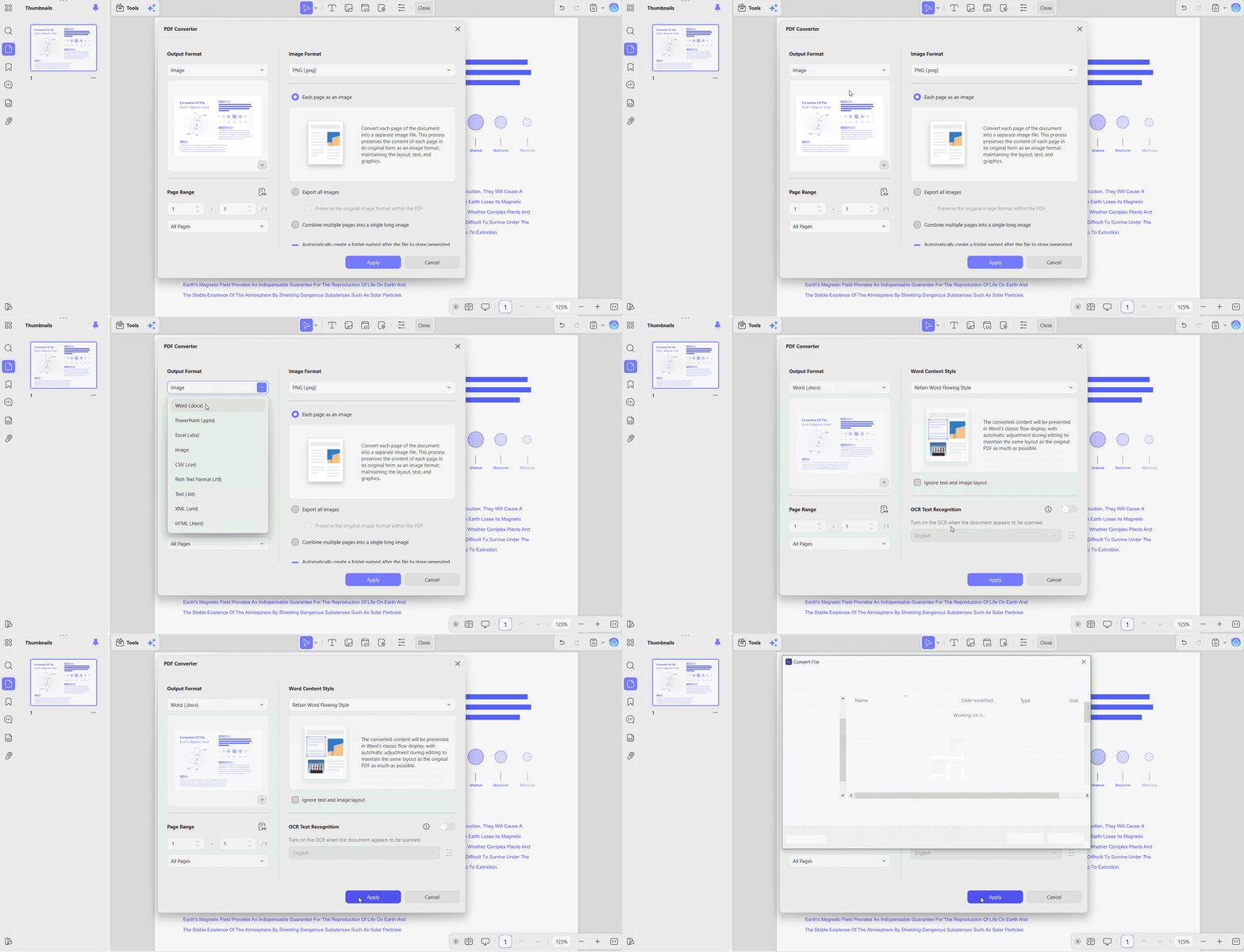
| Convert To | What You Get | Typical Use |
|---|---|---|
| Word | Editable text with the original layout preserved | Rewriting a section of a report |
| Excel | Live rows and columns lifted from a PDF table | Financial data you need to calculate on |
| PowerPoint | Slide-ready blocks built from report content | Turning findings into a deck |
| Text or Image | Clean plain text, or high-quality page snapshots | Archiving, quoting, or pasting into email |
Organize, Sign & Finalize
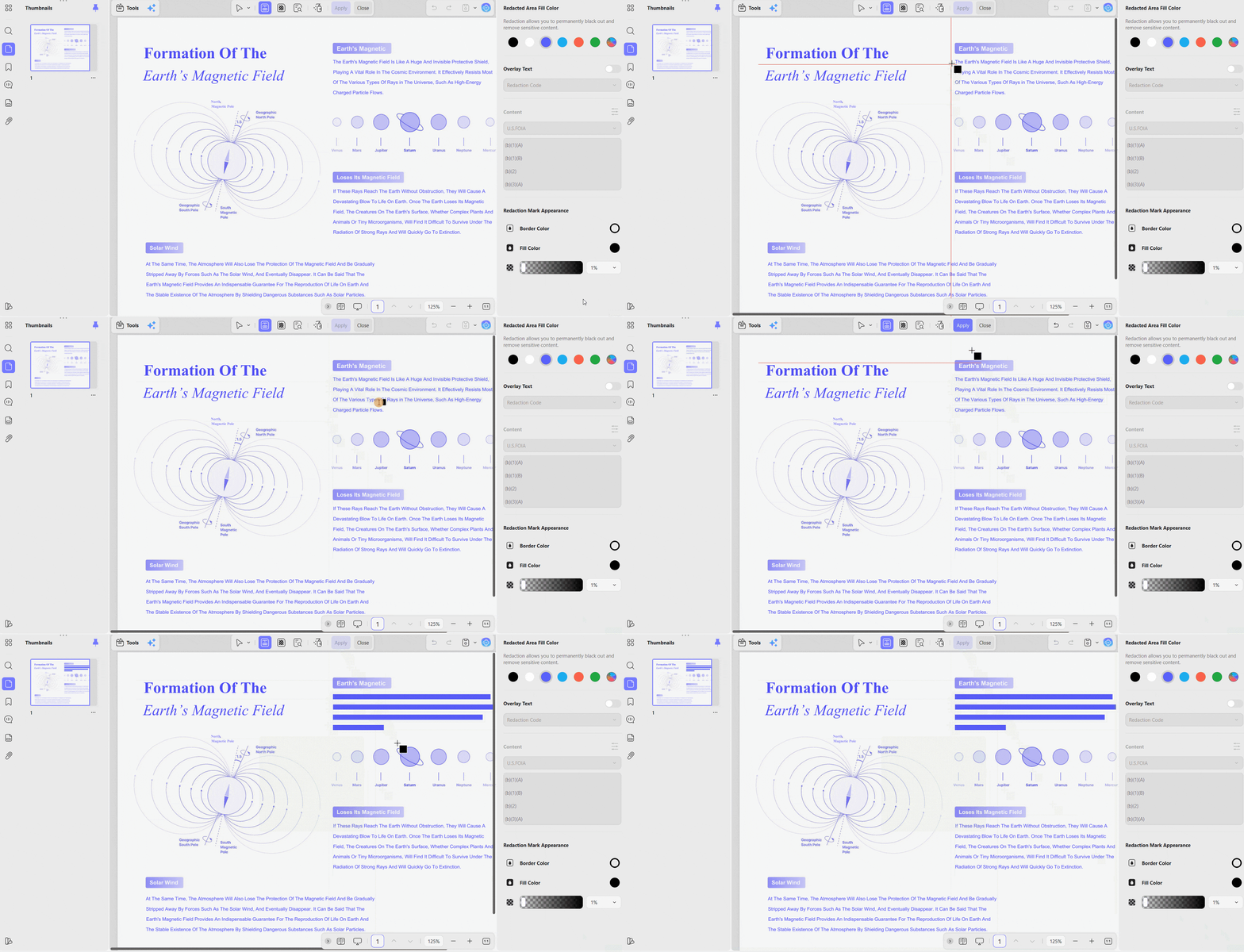
The final stage is where you prepare the document for actual use. You can merge, split, or rotate pages, add review notes, hide sensitive details, complete forms, and reduce the file size before sending it.
- Combine material from several reports into one properly ordered document.
- Remove account numbers or personal details before sharing the file.
- Add an e-signature or use a digital signature for legally binding documents.
- Compress the completed PDF when it exceeds an email attachment limit.
Use Case: The scanned contract from the opening has now been read, understood, corrected, converted, signed, and sent. It never left the application.
Why Choose UPDF
A workflow only holds together if the tool travels with you and stays affordable. Five things make that practical:
- Cross-Platform: Use UPDF on Windows, macOS, iOS, or Android without changing your usual workflow.
- One Account, Four Devices: A single license supports two desktop and two mobile devices across different platforms.
- Cost-Effective: UPDF costs roughly one-fifth of Adobe Acrobat Pro, while a free trial lets you test it first.
- Security and Privacy: Local processing protects sensitive files, supported by encryption and secure digital signature tools.
- Risk-Free: The 30-day money-back guarantee gives you time to assess whether UPDF suits your needs.
The device allowance matters more than it sounds. A contract reviewed on an iPad at a client site is the same licensed file you finish on a desktop that evening.
Finish the Work, Not Just the Reading
AI that only explains a document leaves the real task unfinished. UPDF bridges that gap by turning summaries and translations into editable, searchable, converted, signed, and shareable files. Everything stays inside one cross-platform workspace, from OCR and precise editing to final compression.