Discover the official steps to unlock a Xiaomi bootloader using the Mi Unlock Tool. This guide covers mandatory wait times, new HyperOS community restrictions, and safer alternative methods to fix a bootloop or remove a screen lock without modifying your device’s core system.
Quick Answer: To unlock a Xiaomi bootloader, use the official Mi Unlock Tool on a Windows PC after linking your Mi Account to your device. The process may require approval and a waiting period, and unlocking will erase your phone’s data.
Unlocking a Xiaomi, Redmi, or POCO bootloader lets you install custom ROMs, modify system files, or gain root access. However, Xiaomi imposes account verification, waiting periods, and stricter HyperOS requirements. This guide covers the official unlocking steps, key restrictions, and what to consider before you begin.
Important Prerequisites and Data Wipe Warning
Before you download the official tool or change any settings, you must prepare your device. The most important fact to understand is that officially unlocking your Xiaomi bootloader will trigger an unavoidable factory reset, wiping all user data.
Make sure you have checked off the following prerequisites before proceeding:
- Full Data Backup: Back up all essential photos, contacts, and app data locally to a PC or to a cloud service. Everything on the phone’s internal storage will be erased.
- A Valid Mi Account: You must have a Mi Account that has been active and logged in on the device.
- Active SIM Card with Mobile Data: The account binding process will fail if you use Wi-Fi. You must use mobile data from the inserted SIM card.
- Windows PC: The official Mi Unlock Tool is designed specifically for Windows operating systems.
- Original USB Cable: A stable connection is required when booting into Fastboot mode to prevent soft-bricking your phone.
- Sufficient Battery: Ensure your Xiaomi phone is charged to at least 60% to prevent unexpected shutdowns during the unlock process.
Step-by-Step: How to Use the Official Mi Unlock Tool
Once your data is backed up and your SIM card is active, you can begin the official process. Be prepared for a waiting period, as third-party tools cannot bypass Xiaomi’s official server countdowns.
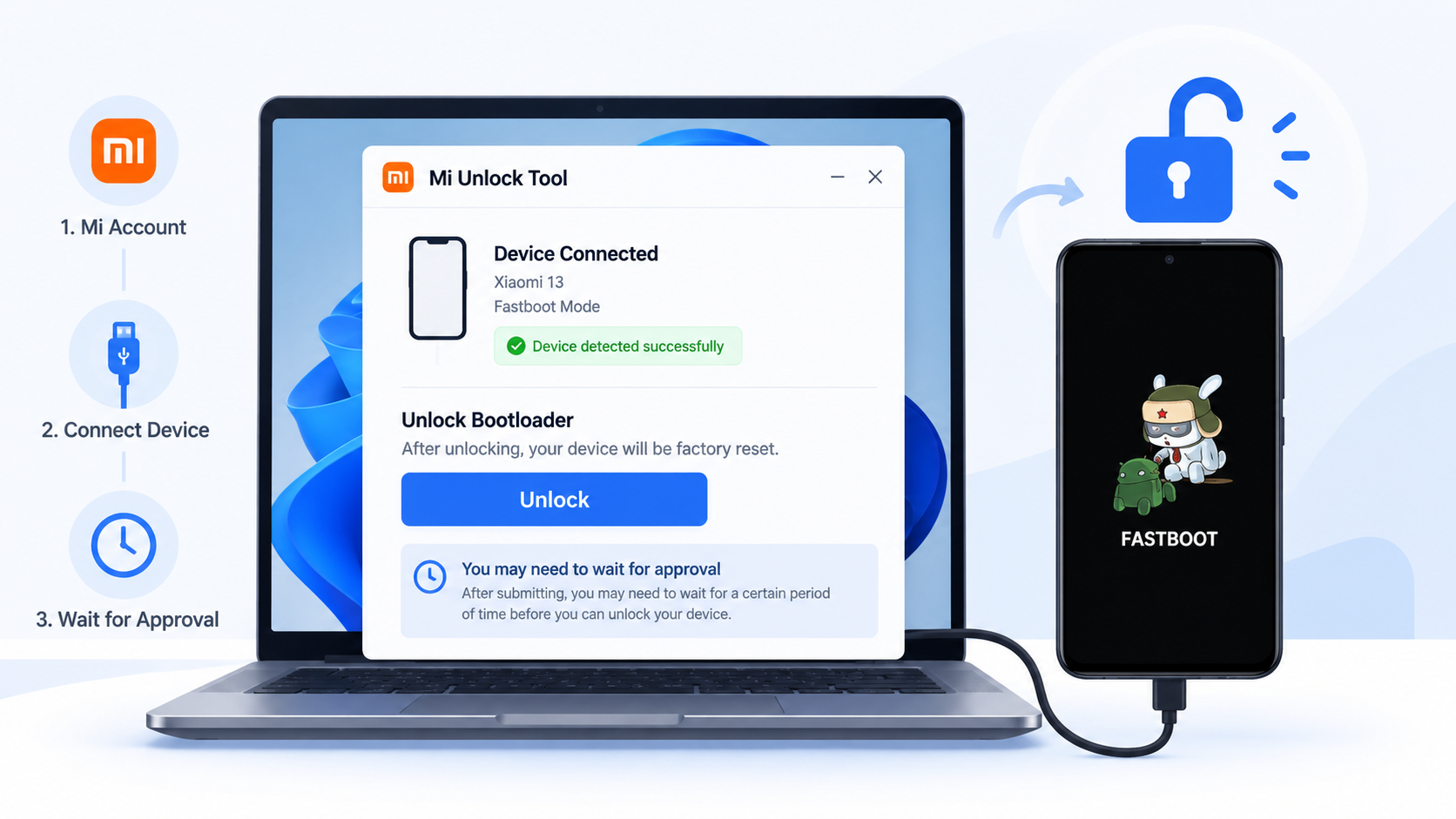
- Step 1. Download the Mi Unlock app to PC, and sign in with your Mi Account;
- Step 2. Shut down your phone manually, and hold Volume down key and Power button to enter Fastboot mode;
- Step 3. Connect your phone to PC using USB cable and click “Unlock”.
The HyperOS Restriction: What You Need to Know
If you are using a newer Xiaomi, Redmi, or POCO device that launched with or was updated to HyperOS, the traditional unlocking rules have drastically changed. Many users find themselves frustrated by “Application Quota Limit” errors or sudden unlock failures entirely unaware of Xiaomi’s new restrictions.
Under HyperOS, linking a Mi Account and waiting 168 hours is no longer enough. Xiaomi now requires users to be highly active in their community forums. You must download the Xiaomi Community app, change your region to Global, and reach Level 5 in the community before you can even request an unlock.
Furthermore, Xiaomi only releases a limited number of unlock quotas per day. Even if you reach Level 5, you have to apply during specific time windows and hope your account is approved. Once approved, the permission is only valid for a limited time, and unlocking is strictly limited to three devices per year per account.
Why Do You Want to Unlock? (Diagnosing Your Real Problem)
Before you fight through HyperOS restrictions or wait 168 hours, it is crucial to ask: Why are you trying to unlock your bootloader?
A common misconception among Android users is that they must unlock the bootloader to fix a frozen phone (bootloop) or to bypass a forgotten screen PIN. This is incorrect. If your goal is system repair or lock removal, waiting 168 hours is not only unnecessary—it’s often the wrong path entirely.
Review the decision table below to match your actual goal with the correct solution:
| Your Real Goal | Do you need to unlock the bootloader? | Best Path Forward |
|---|---|---|
| Flashing custom ROMs or rooting your device | Yes | Use the official Mi Unlock Tool, follow HyperOS community rules, and wait the mandatory 168+ hours. |
| Fixing a phone stuck on the Xiaomi logo (Bootloop) | No | Use an Android system repair software or basic Recovery Mode options to safely repair the system. |
| Removing a forgotten screen passcode on a device you own | No | Use a dedicated Android screen unlocker tool to wipe the lock screen (Note: this still erases device data). |
If you belong to the second or third group, you do not need to fight with Fastboot commands or official server wait times. A dedicated repair toolkit is a safer, more efficient alternative.
Alternative: Fix a System Crash or Remove a Screen Lock with DroidKit
If your actual goal is to fix an Android system crash or regain access to your owned device after forgetting the passcode, you don’t need to unlock the bootloader. For supported software issues and lock scenarios, you can use a guided desktop workflow that bypasses the complex Mi Unlock requirements entirely.
Note: DroidKit does not unlock the bootloader for flashing custom ROMs. It is designed specifically to help users resolve system issues or remove screen locks.
Here is how you can use DroidKit’s specific modules to resolve your Android problems:
- Download and Open DroidKit: Install DroidKit on your Windows or Mac computer and launch the software.
- Choose the Relevant Module:
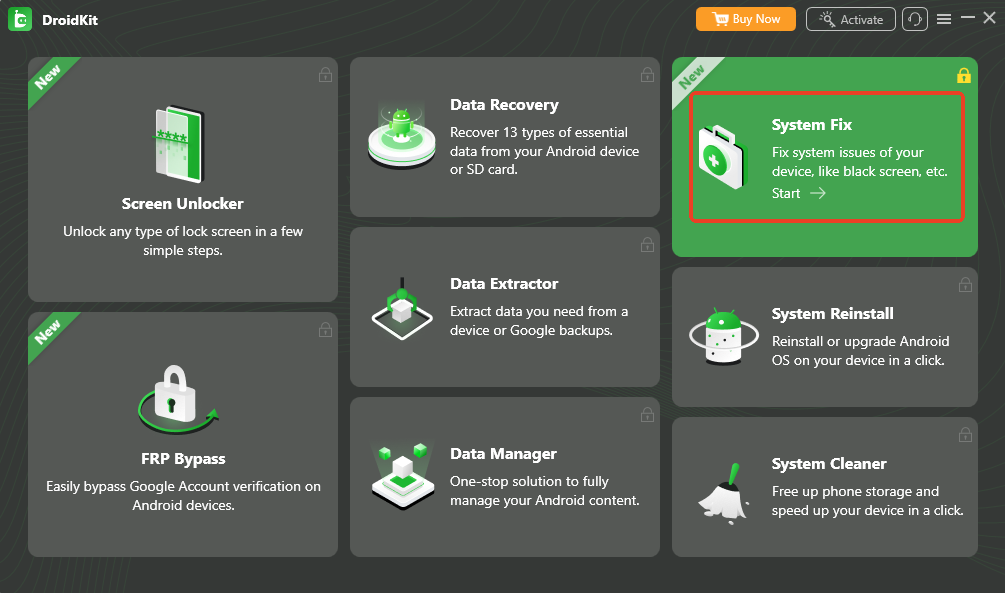
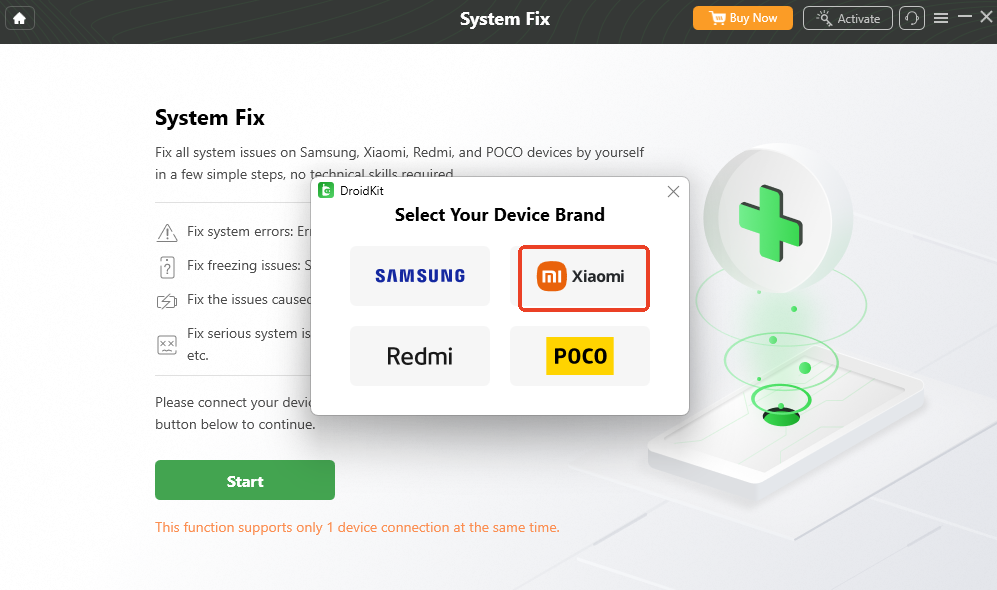
- Select System Fix if your supported Xiaomi phone is stuck in a bootloop, frozen on a black screen, or constantly restarting. (Note: System Fix does not support every single Android model, so check device compatibility on the product page before starting).
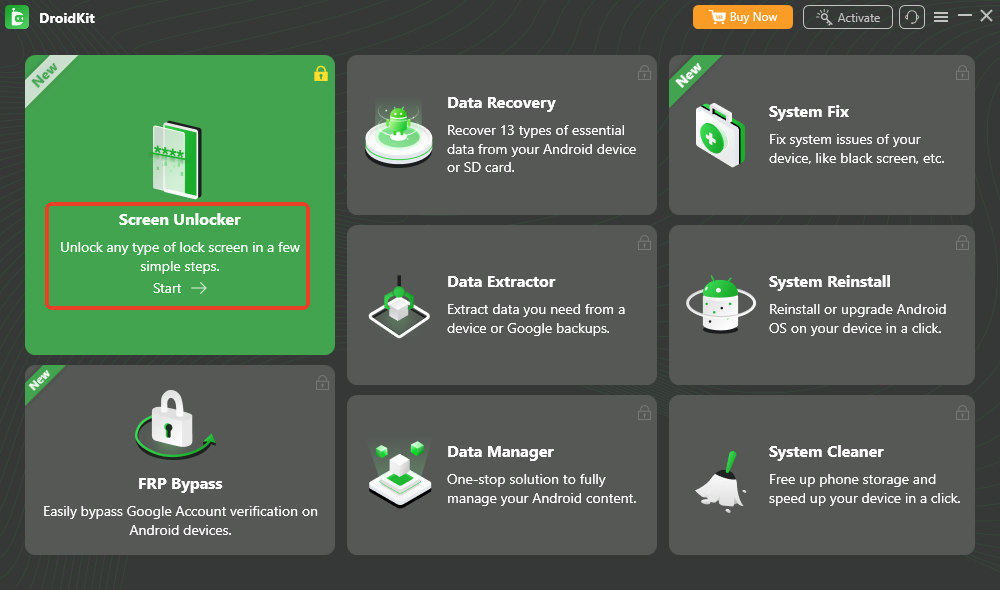
- Select Screen Unlocker if you forgot your PIN, pattern, or fingerprint on your own device. (Keep in mind that removing a screen lock will still wipe the device data).
- Connect Your Xiaomi Device: Use a USB cable to connect your phone to the computer.
- Follow the Guided Workflow: Based on your selected module, DroidKit will provide step-by-step on-screen instructions to either download matching firmware for a system repair or safely remove the screen lock barrier.
- Check the Result: Once the process finishes, your device will reboot normally, allowing you to set it up again without waiting 168 hours.
Frequently Asked Questions About Xiaomi Bootloaders
Does unlocking the bootloader wipe my data?
Yes. Unlocking the bootloader through the official Xiaomi tool will trigger an automatic factory reset, wiping all local files, photos, and apps.
Do I need to unlock the bootloader to fix a bootloop?
Not always. In many cases, booting into Android Safe Mode, clearing cache in Recovery Mode, or using tools like DroidKit System Fix can resolve the software crash without modifying the bootloader.
Can third-party tools bypass Xiaomi’s official wait times?
No. True bootloader unlocking always requires the official Mi Unlock Tool. Competitor tools claiming to bypass this are often referring to screen unlocking or FRP bypass features, not bootloader unlocking.
Choosing the Right Solution for Your Xiaomi
Unlocking a Xiaomi bootloader requires patience, precision, and adherence to Xiaomi’s strict guidelines. If your true goal is to install custom ROMs or modify system files, your only option is to use the official Mi Unlock Tool, back up your data, and wait the mandatory 168 hours—or tackle the strict Mi Community rules if you are running HyperOS.
However, it is vital to diagnose your real intent first. If you are desperately trying to fix a phone stuck in a bootloop, or if you simply forgot the screen passcode to your own device, you do not need to unlock the bootloader.
For those specific software and lock screen issues, you have an alternative. By choosing the right module inside a toolkit like DroidKit, you can follow a guided workflow to repair your system or bypass the lock screen, saving you from complex commands and week-long server wait times. Check your device’s compatibility and choose the path that best matches the problem you are actually trying to solve.