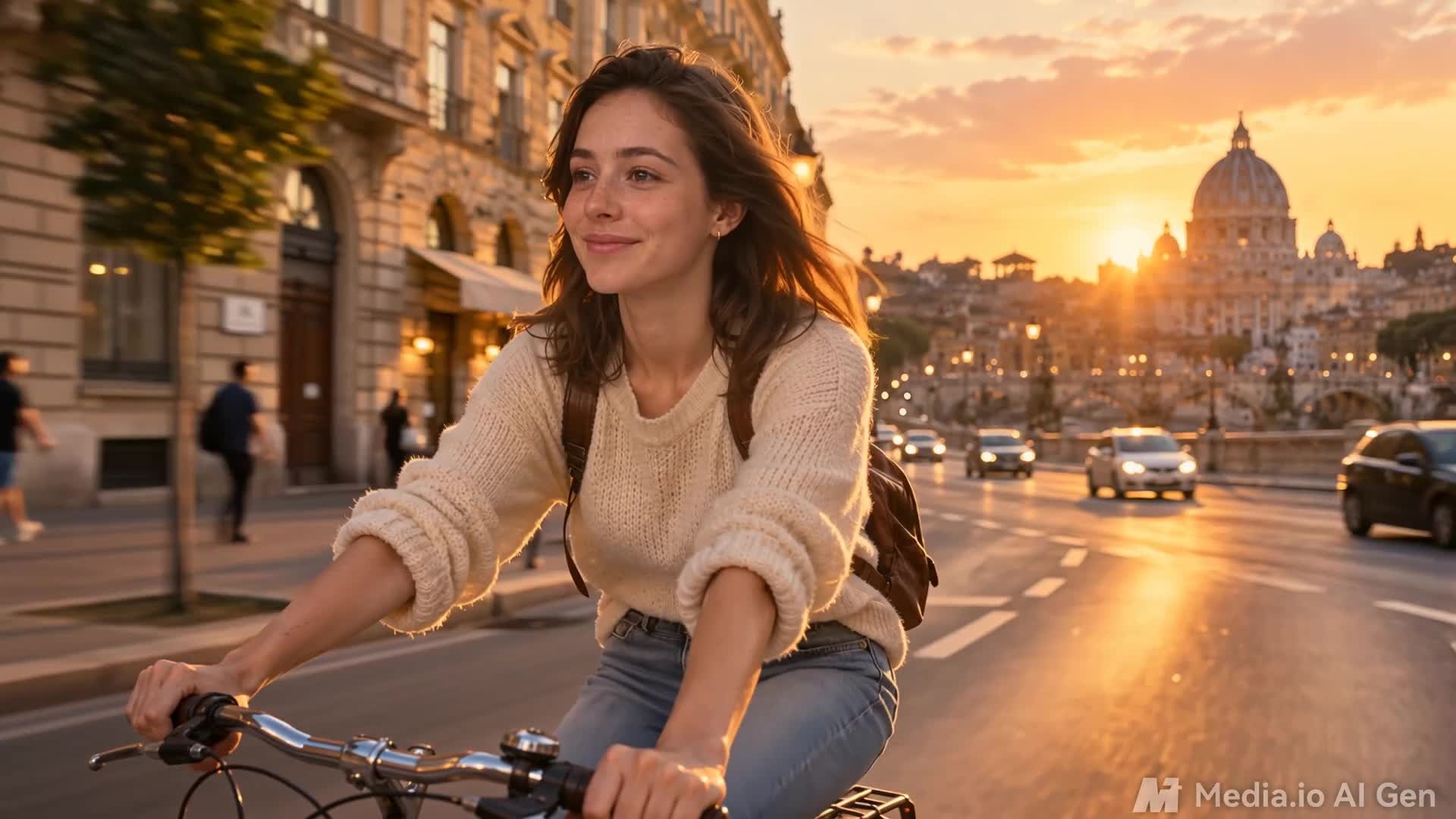
The sunset looked perfect while you were filming. But when you replay the clip, the cyclist’s face seems soft, shadows look grainy, and the background has lost its detail. It happens to travel videos, vlogs, and clips shared repeatedly through messaging apps.
A video quality enhancer may help rescue footage that is worth keeping. Instead of sharpening everything by hand, AI can target common problems such as noise, soft details, and uneven color. Online platforms like Media.io make the process accessible without a complicated editing timeline.
Why Do Smartphone Videos Look Blurry?
Not every low-quality video has the same problem. Identify the main issue before choosing an enhancement mode:
- Low-light noise: Night scenes and dim rooms can show distracting grain, especially in shadows.
- Soft focus or movement: Quick camera motion and missed focus can blur a face or fine details. Severe motion blur is difficult to recover.
- Compression: Repeated uploads and exports can smear hair, textures, or building edges.
- Flat color: Poor exposure or white balance may make an otherwise clear video look dull.
A useful first step is to pause on a frame, inspect the subject, then play the clip to see whether the problem persists during motion.
How to Enhance Video Quality Online with Media.io
For this tutorial, we used Media.io’s AI video enhancer on a five-second, AI-generated clip of a woman cycling through a golden-hour city scene. We lightly compressed the clip before uploading it to create a realistic test input. The comparison below uses that compressed file as the original, not the pristine generated video.
Step 1: Open the Video Enhancer
In Media.io, go to AI Tools, choose the Video category, and open Video Enhancer. The tool has its own workspace for uploading a clip and selecting an enhancement mode.

Step 2: Upload your video
Click Drag File Here or Click to Upload and select a file. The interface lists MP4 and MOV and displays a five-minute duration limit. Check the current file requirements before processing.
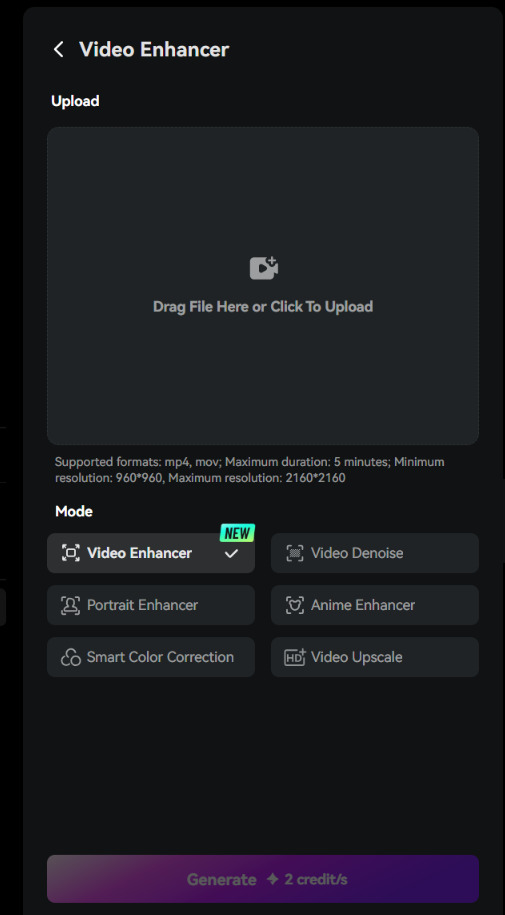
Step 3: Choose a mode and generate
Our test used the default Video Enhancer mode for general clarity. After the cycling clip appeared in the upload panel, we clicked Generate. The interface showed a credit cost before submission. The large preview shown before generation is a sample provided by the tool, not the uploaded result.
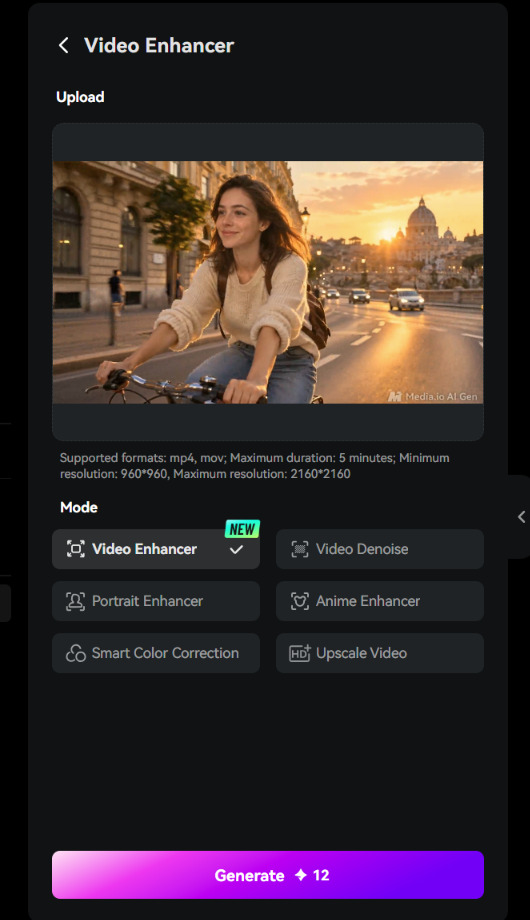
Step 4: Compare and download
The completed job appeared in Generate List, with Original video on the left and Video Enhancer on the right. Playback and download controls were available beneath the comparison.
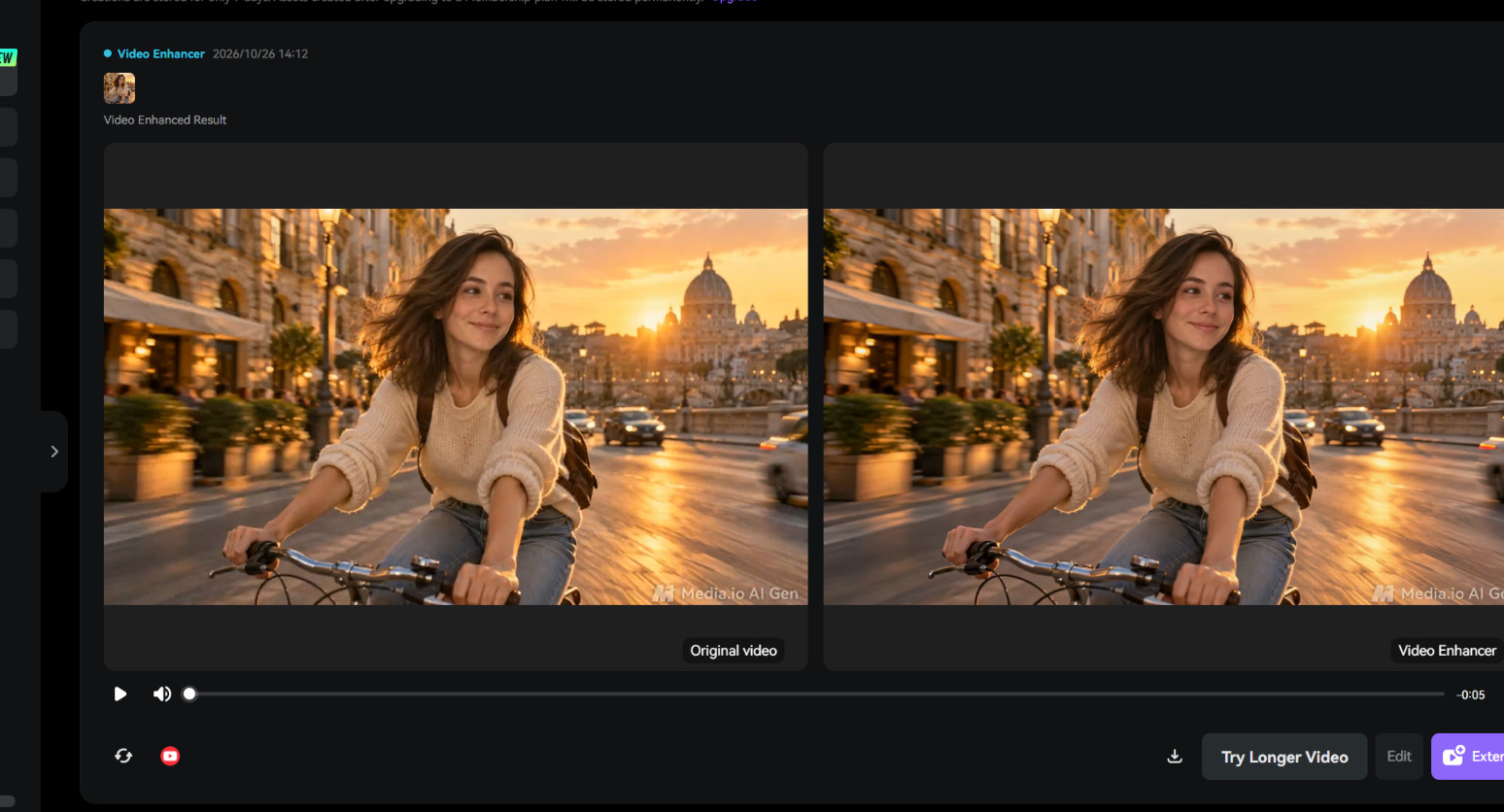
The side-by-side frame looked fairly similar because our test clip began with appealing visuals and only mild compression. That is a useful reminder: look for natural motion, clean edges, and believable facial detail rather than expecting every video to change dramatically. This single example demonstrates the workflow, not a benchmark for all footage.
Which Video Enhancement Mode Should You Use?
Media.io offers several modes for different problems. We tested the general Video Enhancer workflow above; the remaining modes are described from the tool’s displayed features, not separate hands-on tests.
- Video Enhancer: A general option for footage that looks slightly soft or compressed.
- Video Denoise: Targets distracting grain in nighttime and indoor clips.
- Portrait Enhancer: A video portrait enhancer for face-focused clips, such as selfies, interviews, and vlogs.
- Smart Color Correction: Addresses flat tones, awkward exposure, or color balance.
- Video Upscale: Increases output resolution for supported footage, with up-to-4K enhancement advertised by Media.io.
- Anime Enhancer: Intended for animated footage, where clean outlines matter more than photographic texture.
If faces are the focus, start by considering Portrait Enhancer. If shadows contain speckles, try Video Denoise. Choose the mode that matches the visible issue instead of applying the strongest setting automatically.
Where Can an AI Video Enhancer Help Most?
Travel videos. City streets, architecture, and fast-moving scenes often contain both fine detail and motion blur. A gentle enhancement may make them easier to watch on a larger screen.
Selfies and vlogs. Viewers notice facial detail first. A portrait-focused mode is worth considering when the speaker looks soft or overly compressed.
Social media clips. Videos that have been exported and reposted can collect compression artifacts. Improving the working copy may help, although it cannot recreate the exact original pixels.
Older recordings. An old family clip or archive video may benefit from careful cleanup. Keep the original safe, and avoid claiming an upscaled file contains native high-resolution detail.
Tips for More Natural-Looking Results
- Start with the best available file. Avoid enhancing a heavily compressed copy when the camera original is available.
- Fix the most obvious problem first. Denoising, portrait detail, color, and upscaling solve different issues.
- Inspect motion, not just still frames. Check hair, faces, text, and moving edges during playback.
- Avoid overprocessing. Excessive sharpness or smoothing can make skin and buildings look artificial.
- Keep expectations realistic. AI can improve perceived quality, but it cannot guarantee the recovery of information that was never recorded.
Is There a Video Enhancer Free Online?
If you want a video enhancer free online, check what “free” covers. Media.io currently offers eligible new users trial credits, but an enhancement can consume credits depending on the mode and settings. The required amount is shown before generating. This is a convenient way to explore an online workflow, not a promise of unlimited free processing.
Conclusion
Blurry or noisy footage does not always need to be discarded. Choose the enhancement mode that fits the problem, then compare the result carefully. Our short Media.io test showed a straightforward upload, generate, and side-by-side review process. For a travel clip, selfie, or compressed social video, trying a suitable AI enhancement mode can be a practical next step.
FAQs
Can an AI video enhancer fix a blurry video?
It can sometimes improve mild softness, noise, and compression artifacts. Severe defocus or heavy motion blur may leave too little detail to restore reliably.
What does a video portrait enhancer do?
It focuses on people-centered footage, where viewers notice the clarity of faces, hair, and other portrait details. Always check that skin and facial features still look natural.
Can I enhance a video to 4K?
Media.io advertises up-to-4K enhancement for supported videos. A higher output resolution does not guarantee the fine detail of footage originally captured in 4K.