I do not have the newest gaming PC. Over the past few years, I have noticed that newer games have become more demanding. My computer can still run many titles, but I often deal with longer loading times, FPS drops, and occasional lag during online matches. I was not ready to spend money on new hardware, so I started looking for software that could help improve performance.
That is how I found Smart Game Booster. It promises to optimize your PC before gaming by freeing up system resources and improving network performance. I wanted to find out if it could actually make an older PC feel better for gaming, so I tested it for several days with different games. Here is my honest experience.
Can Software Really Help an Older PC?
Before trying Smart Game Booster, I knew that software cannot replace old hardware. If your graphics card or processor is too outdated, no optimization tool will suddenly make it perform like a new gaming PC.
However, many older computers lose performance because of background programs, startup applications, outdated drivers, and unnecessary Windows processes. These are problems that software can help reduce. That was exactly what I wanted to test.
The biggest improvement I noticed was not a huge jump in FPS. Instead, my games felt more stable.
My PC often slowed down before using Smart Game Booster because several background programs were running without me noticing. After using the boost mode, those extra tasks were reduced, and my games experienced fewer sudden frame drops.
Loading into games also felt slightly quicker, although the difference varied depending on the game.
For online games, I also noticed fewer random connection slowdowns during some matches. It did not completely remove lag, but the gameplay felt more consistent.
How I Used Smart Game Booster?
Using the software was straightforward. These are the steps I followed before each gaming session.
- Download and install Smart Game Booster
I installed Smart Game Booster on my Windows PC and opened the application. It scanned my computer and showed my current system status.
- Select the game
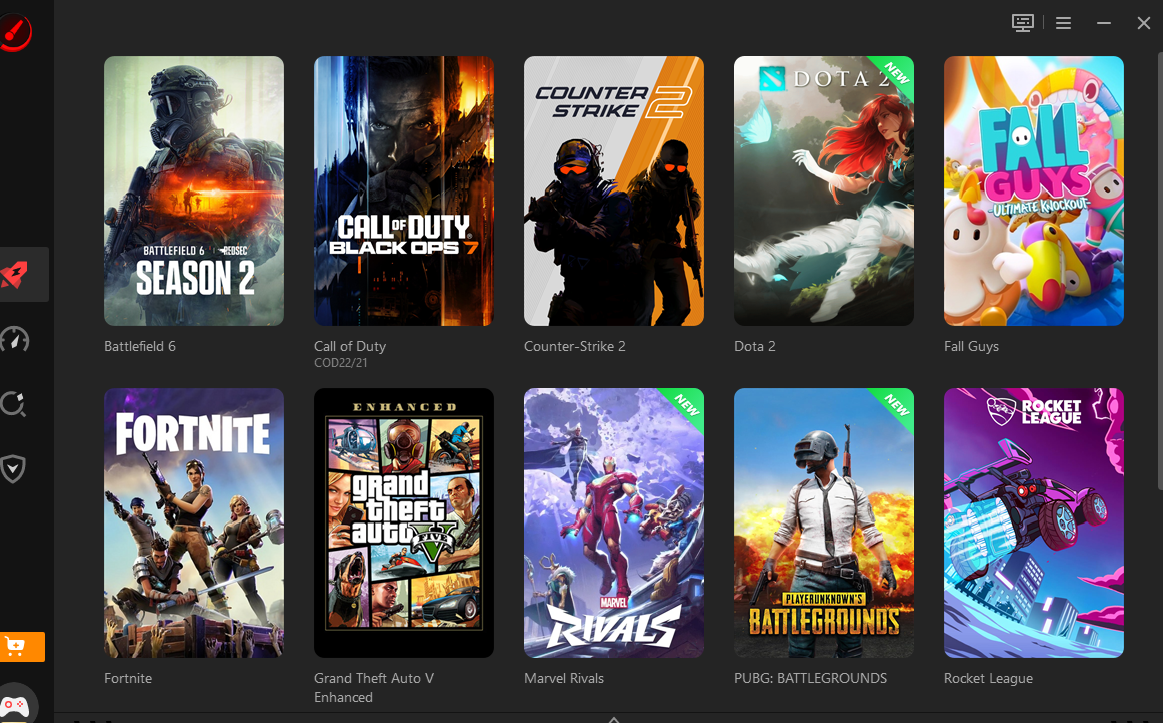
Next, I chose the game I wanted to play from the game list. The software prepared my system by identifying areas that could be optimized.
- Start the boost mode
I clicked the boost button before launching the game. The software closed unnecessary background processes, managed system resources, and adjusted the PC for gaming.
- Launch the game
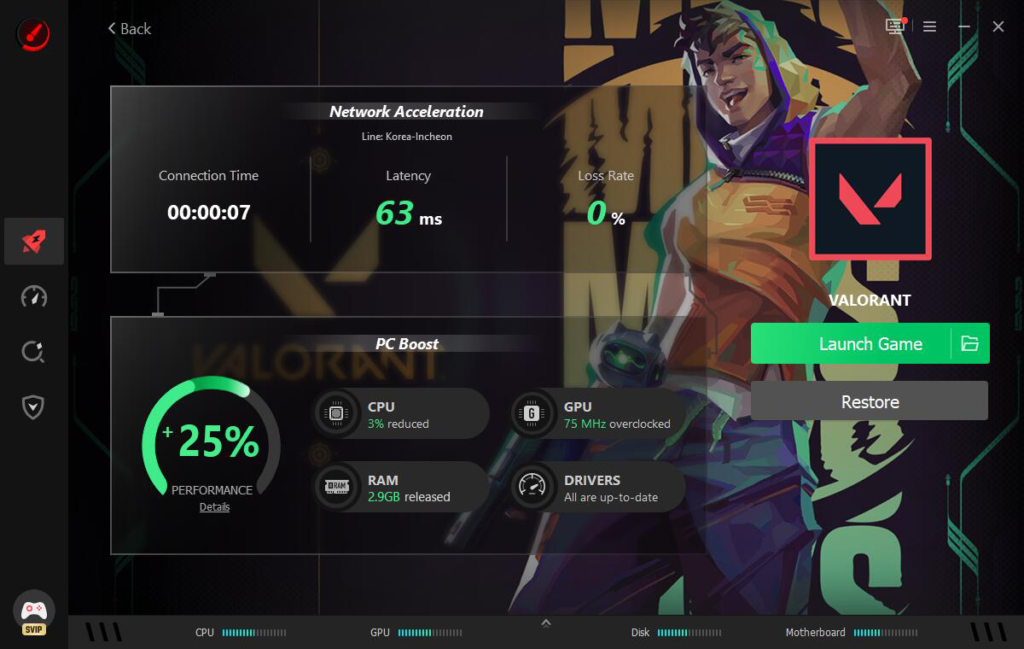
After the optimization finished, I started playing and compared the experience with previous gaming sessions. I mainly looked at FPS stability, loading times, and overall smoothness.
Features I Found Most Useful
Here are the features I enjoyed.
FPS Optimization
This was the feature I wanted to test the most. The software freed up memory and reduced unnecessary background activity before launching games. On my older PC, this helped make gameplay smoother during longer sessions.
I would not expect dramatic FPS increases in every game, but I did notice fewer performance drops.
PC Optimization
One feature I ended up using regularly was the PC optimization section. It helped clean unnecessary files, reduce startup programs, and lower the number of background applications running while gaming.
These small improvements made my computer feel lighter, even when I was not playing games.
Network Boosting
Online games need more than good FPS. A stable connection is just as important. The software includes network optimization tools that try to improve connection quality during gaming. While this did not solve every internet issue, I noticed smoother online matches in some games.
Global Server Support
Another feature I liked was the option to connect through servers in different regions. This can be useful if you play with friends in other countries or want to access game servers outside your local region.
Security and PC Health Tools
The software also includes a few extra features for checking malware, warning about risky websites, and monitoring possible data exposure.
These are not the main reason I installed the software, but they are useful extras to have in the same application.
Things to Consider
- It cannot replace upgrading old hardware
- Results vary from one PC to another
- Some advanced features require the paid version
- Very demanding games will still need stronger hardware
Final Thoughts
After using Smart Game Booster for several days, I think it is a useful FPS booster for people gaming on older computers. It did not transform my aging PC into a high-end gaming machine, but it helped my system run more smoothly by reducing background activity and preparing the computer before each gaming session. I also liked having PC cleanup, driver updates, network tools, and basic security features in one place.
If your PC struggles because it is overloaded with background tasks or outdated drivers, Smart Game Booster is worth trying. Just keep realistic expectations. It works best as an optimization tool, not as a replacement for newer hardware. For my older computer, it made gaming more enjoyable and helped me get a little more life out of the system before thinking about an upgrade.