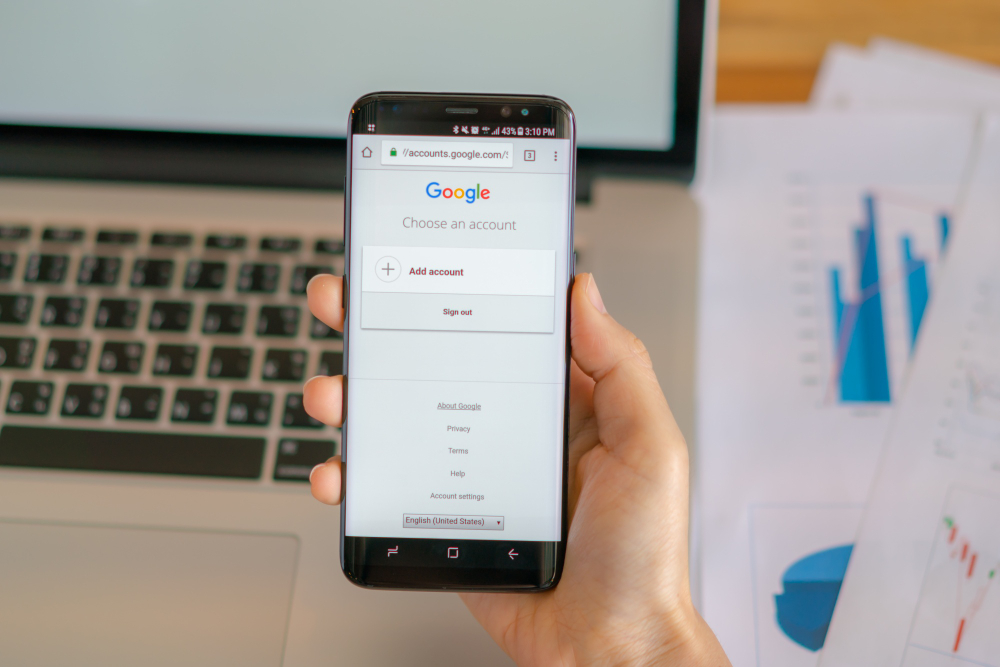
Stuck on the Google verification screen after a factory reset and don’t have a computer? Discover why most manual on-device bypass methods fail, how to use official account recovery, and when a guided PC desktop tool becomes your most reliable alternative.
Can You Bypass FRP Without a PC After a Factory Reset?
If you are stuck on the Google verification screen after a factory reset and do not have a computer, the short answer is: the only official and reliable “without PC” method is recovering your original Google account credentials.
While many video tutorials promise manual on-device bypass tricks—such as using TalkBack settings, keyboard menus, or dialer codes—these rely on temporary security vulnerabilities. Android security updates frequently patch these loopholes, meaning a trick that worked last month is highly likely to fail today. If you cannot recover the official account, using a PC-based FRP bypass tool is often the safest and most practical alternative.
The Official Way: Account Recovery Without a Computer
The Factory Reset Protection (FRP) lock is a manufacturer-supported security feature designed to prevent unauthorized access. The intended way to pass this screen without a computer is simply to log in with the previously synced Google account. If you are having trouble, follow these legitimate recovery steps:
- Reset your Google password on another device: If you own the account but forgot the password, use a secondary mobile phone, tablet, or another person’s device to visit the official Google account recovery page. Once you successfully reset your password, you may need to wait 24 hours before the new password will be accepted on the locked device.
- Contact the original seller: If you bought the phone second-hand and it is locked to the previous owner’s account, ask them to remove the device from their Google account remotely. They can do this by logging into their Google account dashboard from their own device and unlinking the phone.
- Enter the correct credentials: Once the password is recovered or the previous account is unlinked, simply enter the account email and password on the setup screen to bypass the lock legitimately.
Why Manual “No PC” Bypass Exploits Often Fail
It can be incredibly frustrating to spend hours following complex “no PC” bypass videos on YouTube, only to find out the method does not work on your phone. The reality is that manual on-device tricks—such as exploiting accessibility menus, changing language settings, or entering emergency dialer codes—are not official bypass methods. They are security loopholes.
Modern Android security patches specifically target and close these vulnerabilities. As a result, a manual trick that successfully bypassed the Google lock on an older Android version will usually fail on a device equipped with recent updates. Furthermore, many of these unauthorized workarounds require you to download unverified APK files directly onto your phone from the browser. Installing these unknown files carries significant data safety risks, as they can contain malware or compromise your device. This constant patching of manual exploits is exactly why a stable, computer-assisted workflow becomes necessary when official account recovery is no longer an option.
When to Consider a PC-Based FRP Bypass Tool
If you cannot recover the original Google account and manual tricks are patched, finding access to a computer is the most practical next step. Here is a breakdown of how the different routes compare to help you decide your next move:
| Recovery Route | Success Likelihood | Risk Level | Prerequisites & Best Fit |
| Official Account Recovery | High | None (Official method) | You have the original credentials or can contact the seller. The safest “without PC” option. |
| Manual On-Device Exploits | Low (Frequently patched) | High (Unverified APKs) | You strongly want to avoid using a PC, but risk wasting time on patched security loopholes. |
| Guided PC Workflow | High (On compatible devices) | Low (No suspicious APKs on phone) | You are locked out, own the device, and can access a Windows or Mac computer to run dedicated software. |
While the goal is often to bypass the lock without a computer, the failure of manual workarounds makes a reliable desktop tool the clearest path forward for an owned device.
Using Fonelora Android Unlocker (Requires Windows/Mac)
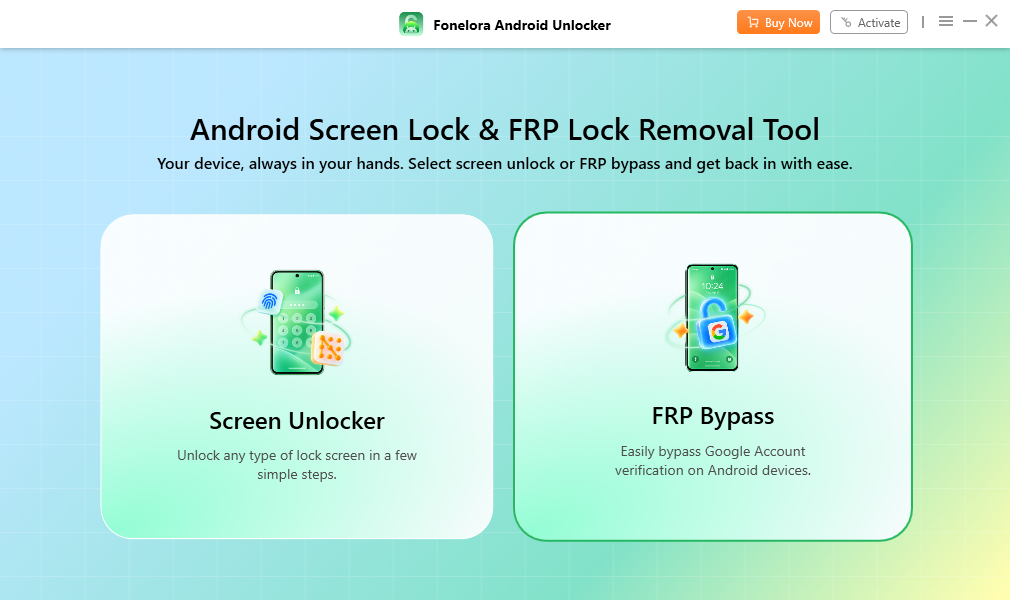
If you decide that a computer is necessary to regain access to your device, Fonelora Android Unlocker provides a dedicated desktop FRP Bypass solution.
Before proceeding, it is critical to understand that this tool is not a mobile app—it REQUIRES a Windows or Mac computer and a USB data cable. It is also strictly designed for users who own the device or are explicitly authorized to manage it.
Review this compatibility checklist before starting:
- Computer Access: You must have a working Windows PC or Mac to install and run the desktop software.
- USB Connection: You need a high-quality, data-capable USB cable to connect your phone to the computer.
- Legitimate Ownership: You must be the owner of the device or have authorization to bypass its verification screen.
- Brand Compatibility: The FRP Bypass workflow supports compatible models from brands like Samsung, Xiaomi, Redmi, OPPO, and others.
- System Baseline: The device must generally be running Android 6.0 or later, though exact feature support depends on the specific brand, model, and security patch.
How the Guided Desktop FRP Bypass Works
Using a desktop tool removes the guesswork and frustration associated with following outdated manual exploits. Fonelora Android Unlocker guides you through the process step-by-step based on your specific device.
Here is how the general FRP Bypass workflow functions:
- Open the Software: Launch Fonelora Android Unlocker on your Windows or Mac computer and select the “FRP Bypass” module.

Choose the FRP Bypass Module - Connect Your Device: Use a reliable USB cable to connect your locked Android phone to the computer.
- Select Your Device Details: Follow the on-screen prompts to choose your phone’s correct brand, model, and Android version. This ensures the software uses the right protocol.
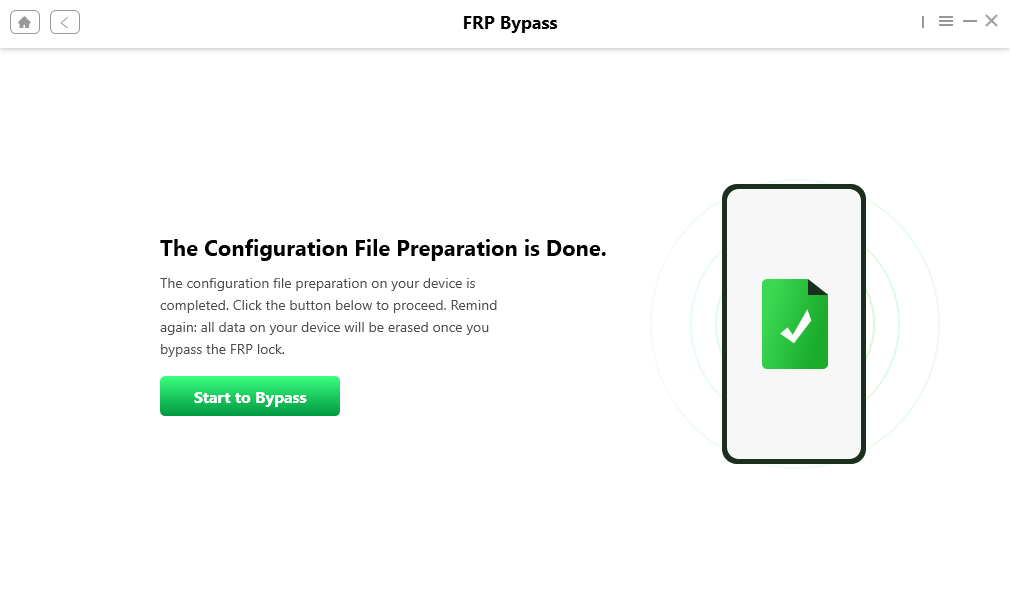
- Follow the Guided Instructions: The software will display clear, step-by-step instructions tailored to your specific device. Follow these prompts carefully to remove the verification lock.
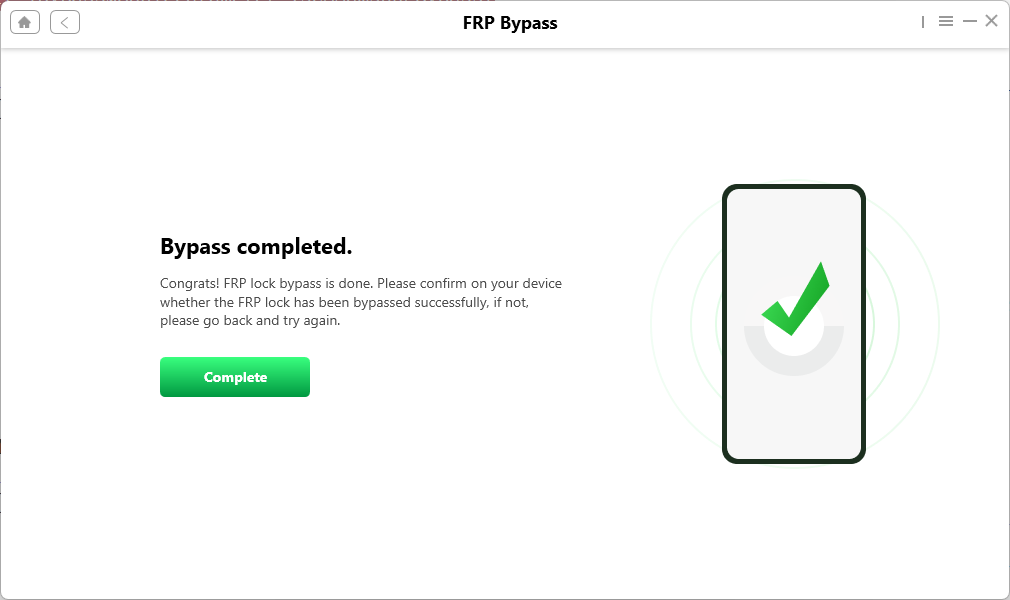
Follow the Steps to Bypass the Lock - Complete Setup: After a successful bypass on a compatible device, the phone will restart. You can then finish the initial setup process and log in with your own new Google account.
Bypass Completed
Frequently Asked Questions About Google Account Removal
Do manual FRP bypass methods still work for the latest Android versions?
Rarely. Manual methods rely on software bugs that are quickly patched by Android security updates. What worked on an older Android version will likely fail on a fully updated device.
What if I do not have a PC to run bypass tools?
If you do not own a PC and official account recovery fails, your best options are to borrow a computer from a friend or family member, or take the device to an official manufacturer repair center with your proof of purchase.
Will a factory reset from recovery mode remove the Google account?
No. Hard resetting a phone using the physical volume and power buttons is exactly what triggers the Factory Reset Protection (FRP) lock. It erases your local data but forces the device to ask for the previously synced Google account to verify ownership upon reboot.
Summary: Choosing Your Best Bypass Route
While finding a “without PC” manual bypass is highly sought after, the reality is that such tricks are rarely successful on modern Android devices due to frequent security patches. Your first step should always be official Google account recovery or contacting the original seller to legitimately remove the synced account.
However, if official recovery is not an option and you are stuck on the verification screen of a compatible device you own, securing access to a computer is your most efficient path forward. Instead of risking unverified APKs and wasting time on patched loopholes, running a guided desktop tool like Fonelora Android Unlocker removes the guesswork. If you have a Windows or Mac computer ready, check device compatibility before starting the FRP Bypass workflow to regain control of your phone and finish your setup.