It began with something harmless enough: A free PDF converter that I downloaded for work. I clicked through the installer too quickly and apparently agreed to a browser toolbar without realizing it. By the next day, my Chrome homepage was changed, my search bar started redirecting, and a strange icon lived next to my URL box. I took the normal approach. I went into Chrome settings, located the extension, and clicked Remove. The icon disappeared for a moment but returned the next time I opened my browser.
I gave Windows “Add or Remove Programs” a shot next. The toolbar wasn’t even listed there. It had no uninstaller, no graceful way to exit, nada. That’s when I knew I wasn’t dealing with a normal program. This was bundleware, made to burrow into your PC and reinstall itself just to annoy you.
Why Basic Removal Tools Failed Me
I spent nearly two days trying every trick I could find. I reset Chrome to default, cleared browsing history, and even ran a registry cleaner I downloaded online (which scared me far more than the toolbar did). Nothing worked for longer than an hour or two. The cursed toolbar just kept returning, like it knew I was trying to get rid of it.
By day three, I was desperate enough to look for something designed specifically to remove toolbars and similar malware. My Google search eventually led me to IObit Uninstaller.
Giving IObit Uninstaller a Shot
Installing IObit was painless. After downloading the free edition, I had the program on my PC in less than a minute. The interface was easy to use, unlike some of the other generic software I installed that day. The first thing that jumped out to me was a tab labeled Bundleware. Naturally, I clicked on it because… well, bundleware sounded like an accurate description of what I was dealing with.
And there it was. My toolbar, sitting pretty in a list of programs with components labeled as Bundleware. It had installed itself along with that PDF converter I mentioned earlier, and now IObit recognized it automatically. I didn’t have to dig through file folders or wonder which installed program was causing my problem.
The Force Uninstall Feature Saved Me
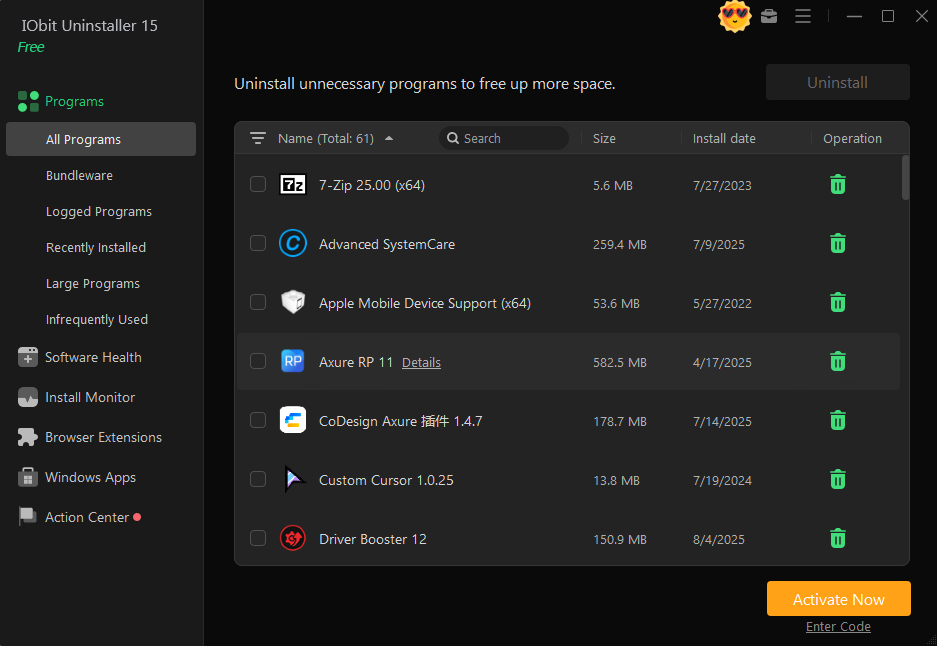
Here’s the best part. I clicked uninstall on the toolbar and received an error. Uh-huh, I thought. No uninstall present, okay. That’s when I spotted Force Uninstall right next to the standard uninstall button.
Click. The tool immediately looked for all instances of the toolbar on my PC. It detected leftover folders, registry changes, and even a browser extension I forgot I had installed. Another click and they were all history. If an installed program doesn’t have an uninstall present, or if it disappeared and left no uninstall entry in Windows, Force Uninstall+ is made for these types of situations.
Checking My Browser Extensions
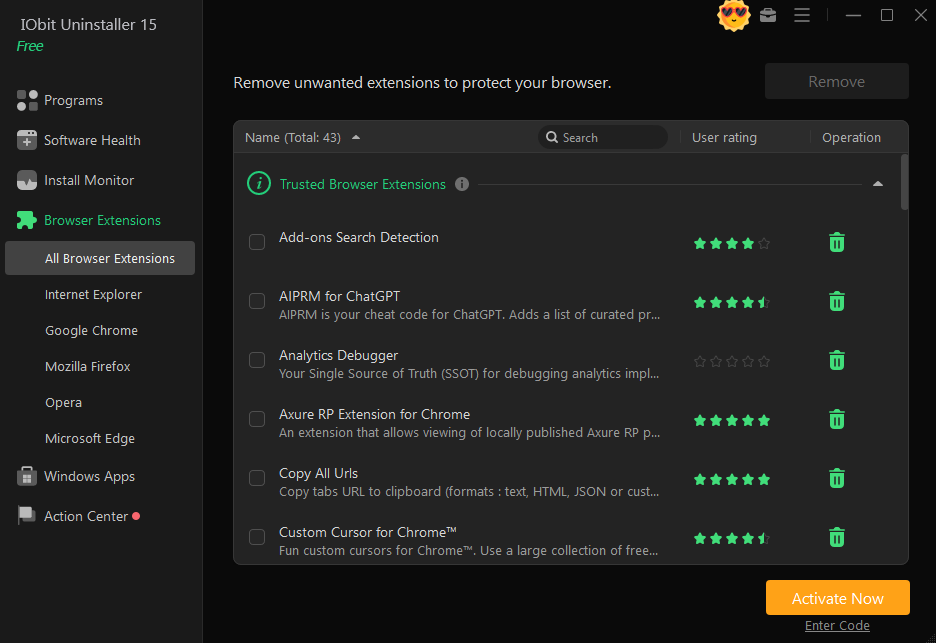
I wanted to double-check that Chrome wasn’t hiding any extra extensions, so I clicked on the browser tab in IObit, an uninstaller for Windows. There are sections for Chrome, Firefox, Edge, and a few others that show every plugin installed for each browser. Scrolling through, I found two extensions I didn’t recognize. Sure enough, both of them were paired with that same bundle of software that installed the toolbar in the first place.
Removing them was just as easy as the toolbar. No need to dig through Chrome’s menus or settings. I fixed everything from inside IObit Uninstaller instead.
Watching for Future Bundleware
With my PC and browser clean, I enabled Install Monitor. This component runs in the background and logs any installations you perform on Windows. It monitors startup items, services, and even DLLs that get registered along with a new piece of software. Basically, if I install something sketchy in the future, it will record everything that program adds. Should that app ever need to be removed, I can force uninstall it later and have IObit erase everything from my PC.
I even tested it by installing a free program just to see if it worked. Low and behold, everything created by that installer was neatly logged in Install Monitor’s history. When I uninstalled that program later, everything touched vanished. Truly impressive.
Was It Worth the Download?
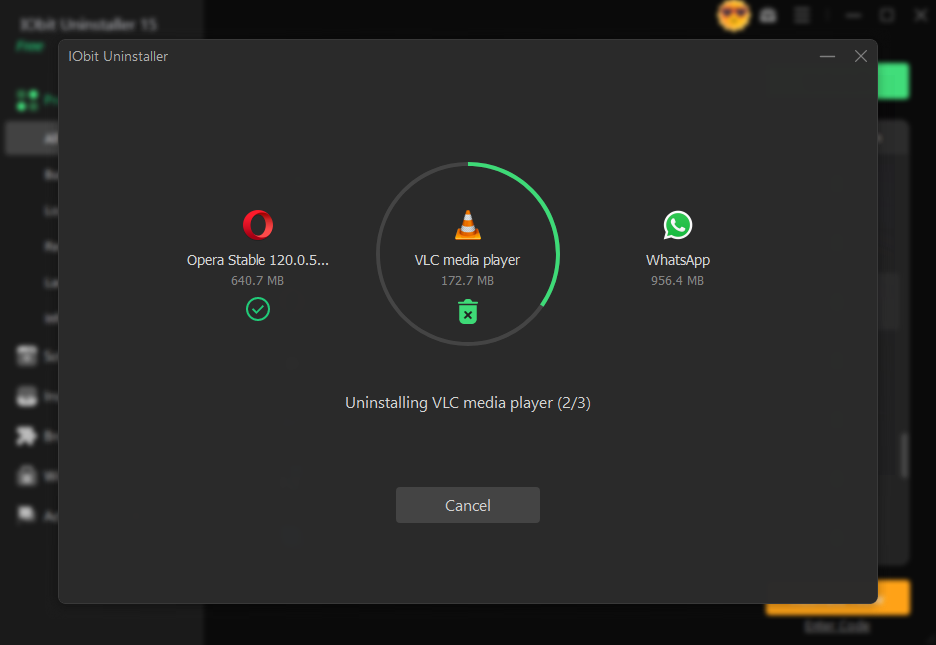
Two frustrating days were finally over in maybe fifteen minutes once I downloaded the right program. The toolbar didn’t return after I used IObit Uninstaller, my homepage reverted to normal, and I haven’t seen any more ghost installs since. You don’t need to know what DLLs are or anything technical like that. The program does all the work.
IObit Uninstaller doesn’t have hundreds of features. No, it focuses on doing one thing well. Yes, it can help you optimize your PC and improve performance in other areas. However, when it comes to uninstalling, IObit is best at finding nasty programs that embed themselves in Windows, leave files behind, or resist deletion. If you’ve ever had to deal with a toolbar, a malicious bundleware app, or any software that “Forgot to Uninstall,” that kind of focus is more useful than fancy additions.
Give IObit Uninstaller a try if you’re struggling with something as I did. Start with the free version, because you have everything you need right there. Bundleware detection, Force Uninstall+, and Install Monitor cover the problem I had letter-for-letter. Download IObit Uninstaller for free and see if it can clean up your PC as quickly as it did mine.